
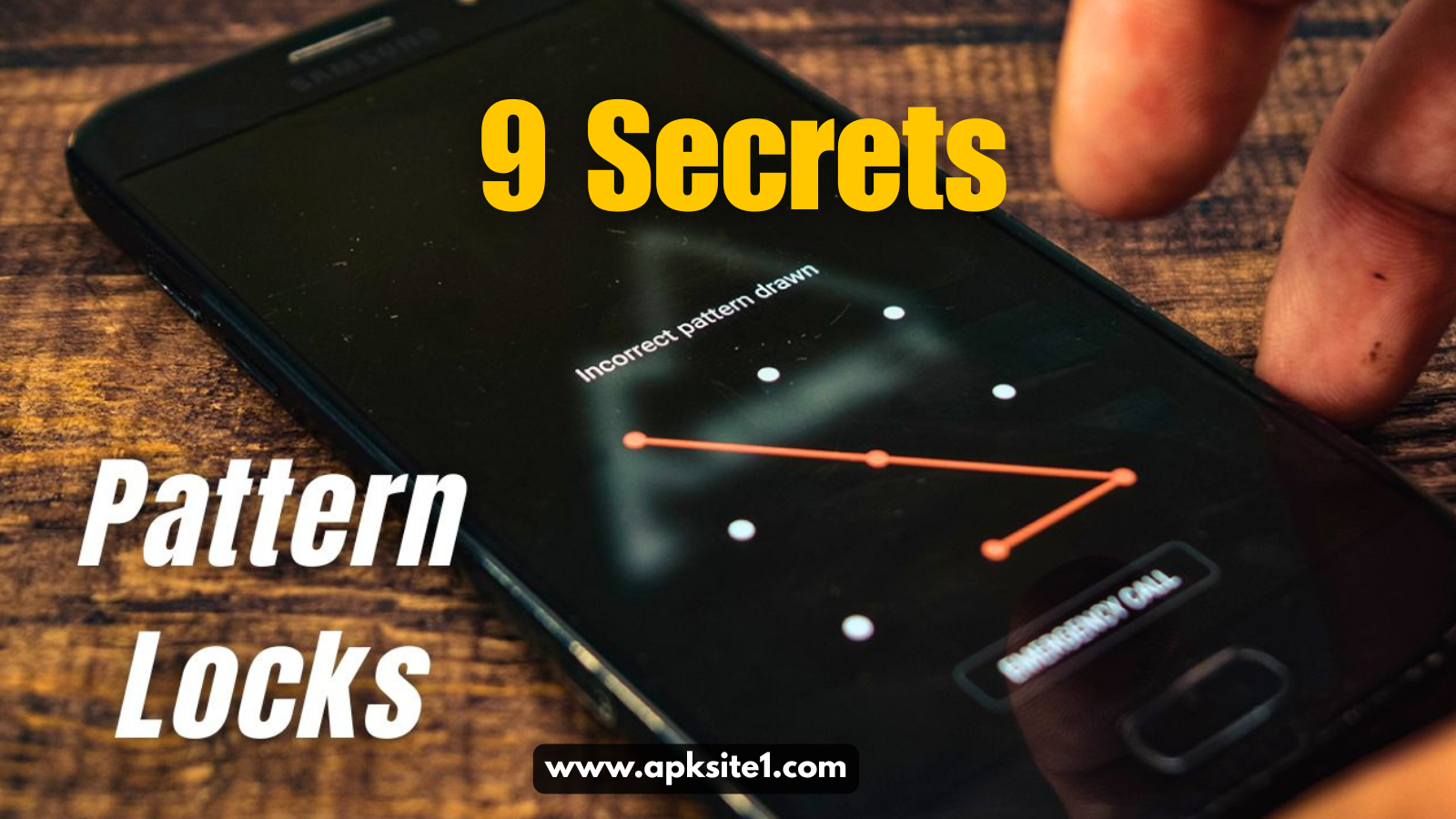
My cousin is seven, and last Eid she picked up my phone, swiped her thumb across the screen in a random zig-zag five times in a row, and locked me out for 30 seconds with a message that said “Try again in 30 seconds.” Then she did it again. And again. By the time I got my phone back, I had a solid 5-minute lockout timer and a genuine question I’d never bothered to ask before: how does pattern lock actually know my pattern is wrong, and why does it get stricter the more you mess up?
That question sent me down a rabbit hole, and honestly, once you understand how pattern lock works under the hood, you’ll never look at that little 3×3 grid of dots the same way again.
So What Is a Pattern Lock, Actually?
Before we get into how pattern lock works technically, let’s keep it simple. A pattern lock is a screen-lock method where you connect a set of 9 dots (arranged in a 3×3 grid) in a specific order using your finger. That order — the sequence you draw — becomes your “password.”
It showed up on Android phones way back with early versions of the OS, and honestly it’s stuck around for over a decade because it’s fast. You’re not typing anything. You’re not pressing a button five times. You’re just tracing a shape you’ve drawn a thousand times before, almost from muscle memory.
But “fast” doesn’t automatically mean “secure,” and that’s really the part nobody explains well.
How Pattern Lock Works, Step by Step
Here’s the part that actually surprised me when I looked into it.
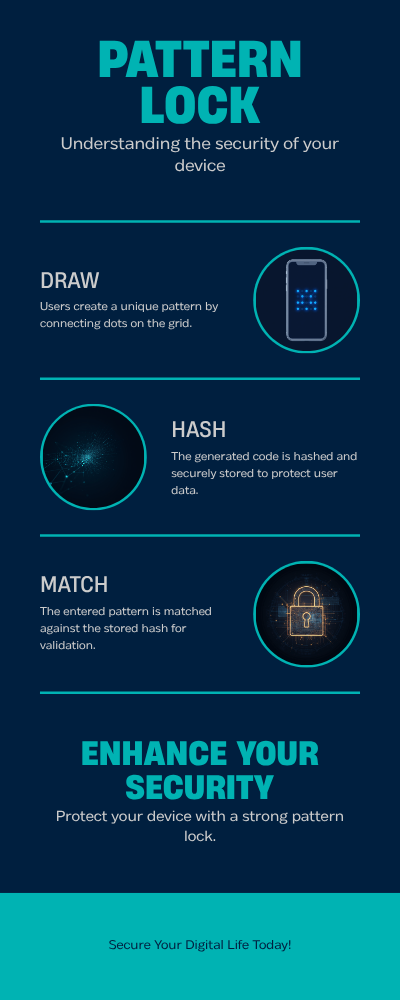
Step 1: You draw a pattern. Say you connect dot 1, then dot 5, then dot 9, then dot 7. That’s your unique sequence.
Step 2: The phone converts it into data. Your phone doesn’t store “the picture” of your pattern. It converts the order you touched the dots in into a numeric sequence — basically a string of numbers representing each dot in the order you tapped them.
Step 3: That sequence gets hashed. This is the part most people don’t know. Your phone doesn’t save your pattern as plain, readable data sitting in a file somewhere. It runs it through a one-way hashing function (similar to how PIN codes and passwords are stored) and only saves the hashed version. So even if someone got into your phone’s storage, they wouldn’t see “1-5-9-7” sitting there — they’d see scrambled gibberish.
Step 4: Every unlock attempt gets compared. When you draw your pattern to unlock the phone, it goes through the same hashing process again, and the phone checks if the new hash matches the stored one. If they match, you’re in. If not, you get the dreaded “Wrong pattern” message.
Step 5: Failed attempts trigger lockouts. After 5 wrong attempts, most Android phones lock you out for 30 seconds. Keep failing, and that lockout period increases. This is a deliberate security feature to slow down anyone trying to brute-force guess your pattern.
That’s genuinely how pattern lock works — it’s not magic, it’s just a hashed sequence of coordinates being checked every time.
The Math Behind the Grid (This Blew My Mind)
Here’s a fun fact I didn’t expect: with a 3×3 grid, there are 389,112 mathematically possible unique patterns, assuming you use at least 4 dots (the minimum most phones require).
Sounds like a lot, right? Except here’s the catch — most people don’t use anywhere near that variety. Security researchers who’ve studied real-world pattern usage found that a huge chunk of people default to simple, predictable shapes: an “L,” a “Z,” or a straight line starting from a top corner. And those shortcuts are exactly what someone would try first if they were guessing.
I’m guilty of this too. My first-ever pattern was a lazy “Z” shape because it was quick to draw one-handed on the bus. It took me embarrassingly long to realize that’s probably the second pattern any random person would try after starting from a corner dot.
Real Mistakes I Made With Pattern Lock (Learn From Me)
I want to be upfront about a few things I did wrong, because I think they’re more useful than a generic list of “tips.”

Mistake 1 — I used a pattern shaped like the first letter of my name. Anyone who knows me even a little could probably guess it in two tries. Don’t personalize your pattern with initials, birthdays, or anything tied to your identity.
Mistake 2 — I never wiped my screen. Smudge attacks are real. If you unlock your phone the same way over and over without cleaning the screen, the oil from your finger leaves a visible trail under the right light. I actually tested this myself — held my phone at an angle under a lamp after a few days of no cleaning, and I could clearly trace my own pattern in the smudges. That was a wake-up call.
Mistake 3 — I relied only on pattern lock, no biometric backup. On phones like Samsung Galaxy devices or Google Pixels, you can layer pattern lock with fingerprint or face unlock. I didn’t for years, purely out of laziness, which meant every single unlock was a smudge-leaving opportunity.
Mistake 4 — I forgot to set a backup PIN. When Android asks you to set a backup PIN or security question while creating your pattern, it’s tempting to skip it. I skipped it once, forgot my pattern after a phone sat unused for two months, and had a genuinely stressful hour trying to get back in.
What To Do If You Actually Forget Your Pattern
If you’re reading this because you’re locked out right now, here’s exactly what to try, in order.
- Try Forgot Pattern / Google Account Recovery. After 5 failed attempts, most Android phones show a “Forgot Pattern” option. Tap it, sign in with the Google account linked to the phone, and you’ll be prompted to reset your lock screen.
- Use Find My Device. Go to android.com/find on another phone or computer, sign into the same Google account, select your device, and you’ll get options including securing or unlocking it remotely, depending on your Android version and manufacturer.
- Try your backup PIN. If you set one when creating the pattern (which I now always recommend), this is your fastest way back in.
- Contact your manufacturer’s account recovery, if applicable. Samsung phones tied to a Samsung account sometimes offer their own “Find My Mobile” unlock path separate from Google’s.
- Factory reset — the last resort. If nothing else works, a factory reset through recovery mode will get you back into a working phone, but it wipes everything. This is exactly why cloud backups (Google Photos, Google Drive, or your manufacturer’s backup service) matter more than people think until the day they really need them.
How To Make Your Pattern Lock Genuinely Secure
Now that you know how pattern lock works, here’s how to actually use that knowledge:
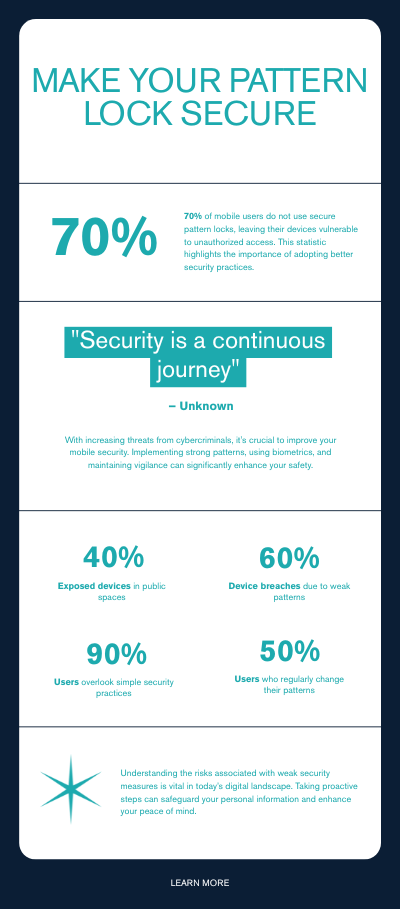
- Use at least 6-8 dots, not the minimum 4. More dots means more possible variations and a much harder pattern to guess or observe.
- Cross over your own lines. Patterns that revisit the same area from different angles are visually harder for someone watching over your shoulder to memorize.
- Wipe your screen regularly, especially if you unlock your phone often in front of others.
- Layer it with biometrics. Fingerprint or face unlock as your daily driver, with pattern as backup, cuts down on smudge exposure significantly.
- Avoid shapes tied to your identity — no initials, no birthdates, no simple corner-to-corner lines.
- Always set a backup PIN when your phone asks. It takes ten seconds and can save you hours later.
- Turn on automatic backups for photos and important data, so a worst-case factory reset never means losing everything.
Mobile Pattern Unlock
Common Mistakes People Make With Pattern Lock
Just to bring it all together, the recurring mistakes I've seen (and made myself) are: using patterns under 4-5 dots, never cleaning the screen, reusing the same pattern across multiple devices, skipping the backup PIN setup, and choosing shapes that spell out initials or follow an obvious corner-to-corner line.
None of these are hard to fix. It's really just a five-minute adjustment to how you set things up.
Visit here, if you want to download App:
Final Thoughts
Pattern lock gets a bit of a bad reputation for being "less secure" than a PIN or password, and technically, if you're using a lazy 4-dot "L" shape, that reputation is earned. But once you actually understand how pattern lock works — the hashing, the lockout timers, the smudge risks — it's clear the weak point was never the technology. It was always how casually most of us set ours up.
My pattern today is nothing like that lazy "Z" I used for years. It's longer, it crosses itself twice, and I wipe my screen more often than I probably need to. Small changes, but they actually matter.
If you've been putting off changing your pattern, this is your sign to go do it right now — it'll take less time than reading this article did.
For more information, visit: APKSITE1




Phone unlock