I plug my phone in probably fifteen times a day, and for years I never once looked at the charging screen. It was just a green bar. Boring, forgettable, gone in two seconds.
Then my cousin showed me his phone one night at dinner. He plugged it in and his dog’s face popped up on the screen, glowing inside a little neon ring, with the battery percentage ticking up underneath. I actually said “wait, go back, do that again.” That’s how I ended up spending an entire weekend figuring out charging animations — what they are, which apps are worth your time, and which ones quietly drain your battery while pretending to save it.
This is everything I learned, written the way I’d explain it to a friend over coffee, not a tech manual.
What Exactly Is a Charging Animation, Anyway?
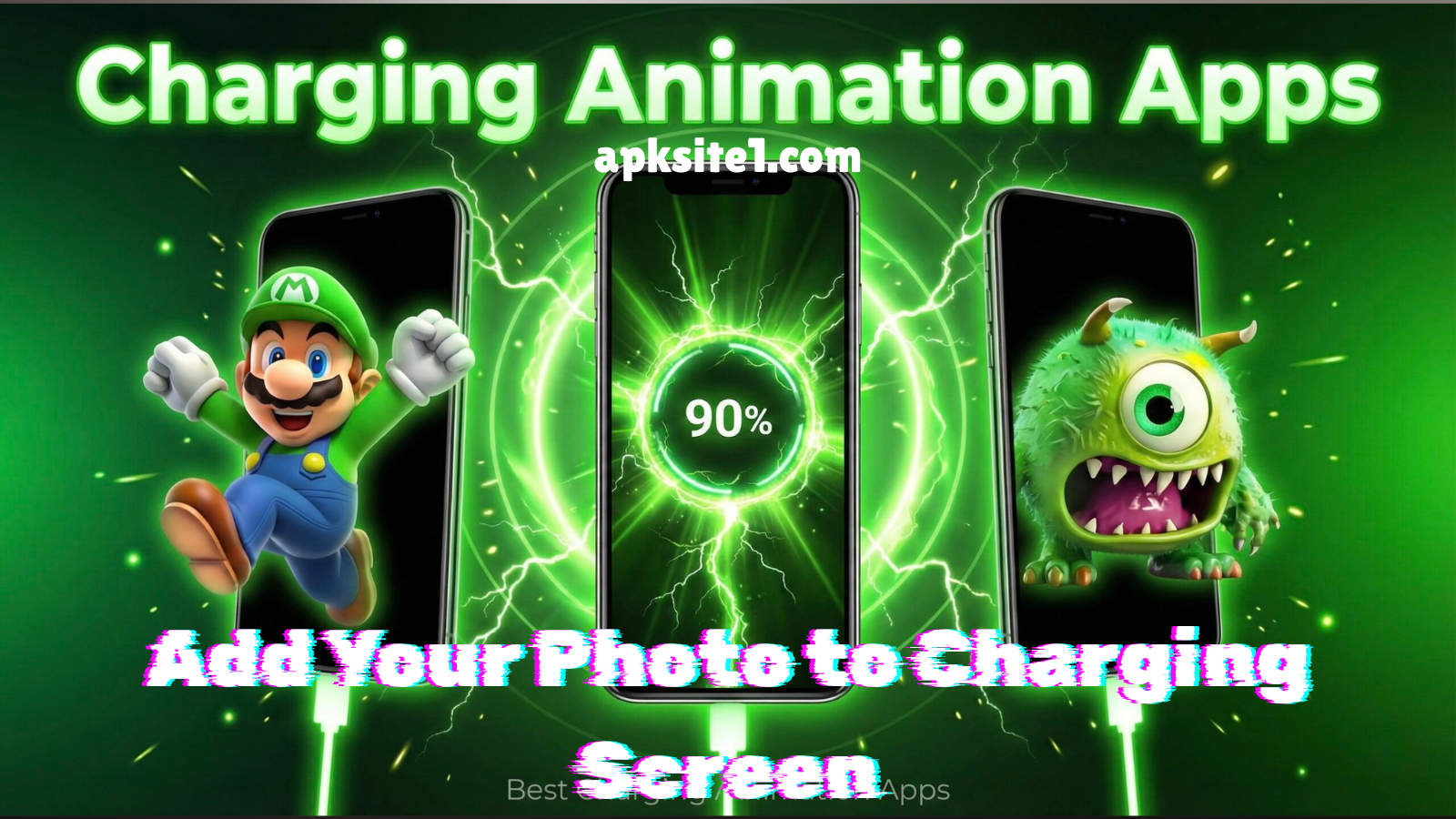
A charging animation is just a custom screen that shows up the moment you plug your phone into power. Instead of the plain lock-screen battery icon, you get something designed — glowing rings, lightning bolts, particle effects, sometimes a photo sitting right in the middle of it all.
Some phones, like newer Samsung and Xiaomi models, build a basic version of this in already. But the photo-in-the-middle trick — the one that actually gets people saying “wait, what is that” — almost always comes from a third-party app layered on top.
How I Set Up My First Charging Animation (and What Went Wrong)
I’ll be honest, my first attempt was a mess. I downloaded the first app that showed up when I searched “charging animation,” picked a photo of my dog, hit enable, and walked away happy.
Two days later my battery had dropped noticeably faster than usual, and my phone felt warm even when I wasn’t doing anything heavy. Turned out that particular app was running a background overlay service constantly, not just when charging — which meant it was eating battery around the clock, not saving any of the drama for when I actually plugged in.
The fix wasn’t to give up on charging animations. It was to be pickier about the app and how I configured it. Here’s what actually worked.
Step-by-Step: Adding Your Photo to a Charging Animation on Android
This works on pretty much any Android phone — Samsung, Xiaomi, Vivo, Oppo, Realme, OnePlus, whatever you’re carrying.
- Open the Play Store and search “charging animation.” Skip anything with under a few thousand reviews or a rating below 4.0 — that’s usually where the battery-draining junk lives.
- Check the permissions before installing. A legitimate charging animation app needs “display over other apps” and access to your photos. If it’s asking for contacts, SMS, or call logs, that’s a red flag — close it and pick another one.
- Open the app and choose “Add Photo.” Pick something with decent lighting; animations with glow effects tend to wash out dark or blurry photos.
- Pick your animation style. Most apps offer a handful of templates — neon rings, particle waves, lightning borders. I’d recommend trying two or three before settling, because some styles cover more of your photo than others.
- Turn on “battery percentage overlay.” This is the part that actually makes it useful, not just decorative — you still want to glance at the screen and know how charged you are.
- Enable lock screen display, but check the battery settings afterward. Go into your phone’s battery settings and make sure the app is only allowed to run “while charging,” not “always.” This single step is what fixed my battery drain problem.
That last step is the one most guides skip, and it’s the one that actually matters.
Charging Animation Options on Samsung, Xiaomi, Oppo, Vivo, and OnePlus
A few brand-specific notes, since not every phone behaves the same way:
Samsung users can get a cleaner result through Good Lock’s “LockStar” module, which handles lock-screen customization more gracefully than most third-party apps and is less likely to fight with One UI’s battery optimizer.
Xiaomi phones running MIUI/HyperOS often support charging effects through the built-in theme store, which tends to be more battery-friendly than outside apps since it’s part of the system rather than a separate background service.
Oppo, Realme, and Vivo devices generally need a third-party app for the photo-overlay trick, since their native charging visuals (VOOC and FuntouchOS effects) don’t support personal photos out of the box.
OnePlus is similar — the native Warp Charging animation looks great but is fixed; you’ll need an app if you want your own image inside it.
What About iPhone Charging Animation?
iPhones don’t allow third-party apps to touch the lock screen the way Android does, so you can’t get the exact same glowing-photo effect. But you can build something close using the Shortcuts app:
- Open Shortcuts → Automation → Create Personal Automation.
- Select “When iPhone is connected to power.”
- Add the action “Show Notification” and attach your photo.
- Turn off “Ask Before Running” so it triggers automatically.
It’s not a full-screen animation, but it pops up your photo every time you plug in, which scratches the same itch.
Mistakes I Made With My Charging Animation (Learn From These)
A few things I’d do differently if I were starting over:
- I didn’t check whether the app ran only during charging — fixing this stopped the random battery drain entirely.
- I picked a photo that was too busy. Simple portraits with a plain background look much better once the glow effect is layered on top.
- I left the screen brightness on auto, which meant the animation looked washed out in daylight. Bumping brightness manually while charging during the day made a real difference.
- I ignored the “battery optimization” prompt that popped up after install. That prompt exists so the app behaves correctly — don’t dismiss it without reading it.
A Couple of Real Examples
My partner set her charging animation to a photo of her cat with a soft blue glow ring — subtle, not flashy, and it still gets noticed every time someone sees her phone on the counter. My cousin, the one who started all this, went with a brighter neon-red ring around his dog’s photo because he wanted something that’d catch your eye from across a room. Same feature, completely different vibe, depending on the photo and the animation style you pair it with.
Click here, to download the App:
Final Thoughts
A charging animation isn’t going to change your life. But it’s a small, genuinely fun way to make a phone you look at fifty times a day feel a little more like yours, instead of whatever it looked like in the store display. Just be a bit careful about which app you install, check that battery-optimization setting, and pick a photo that actually works with a glow effect around it.
If you’ve already tried one of these apps and had a different experience — good or bad — I’d genuinely like to hear about it. That’s usually how I find out about the next thing worth trying.
For More Information, visit here: APKSITE1