I’m someone who dropped their phone at a coffee shop once. Not a big deal, right? Except the person who picked it up had a full 90 seconds with my unlocked screen before I scrambled back to grab it. My PIN was something embarrassingly predictable — my birth year. Lesson learned the hard way.
That incident pushed me down a rabbit hole of mobile security apps. After testing a bunch of them, I landed on something I hadn’t heard of before: a live time password lock screen app. And honestly, it changed the way I think about phone security altogether.
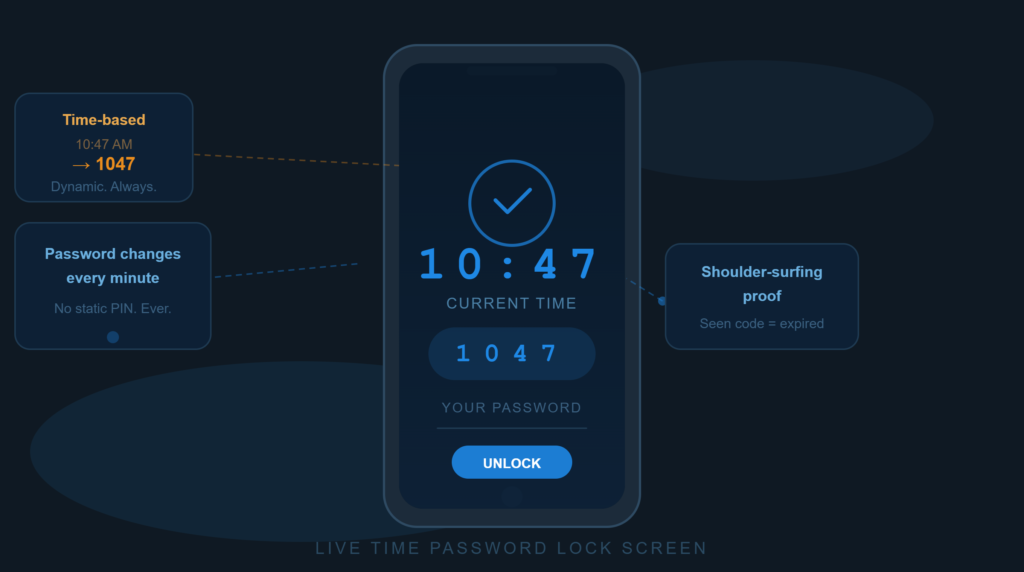
What Is a Live Time Password Lock Screen App?
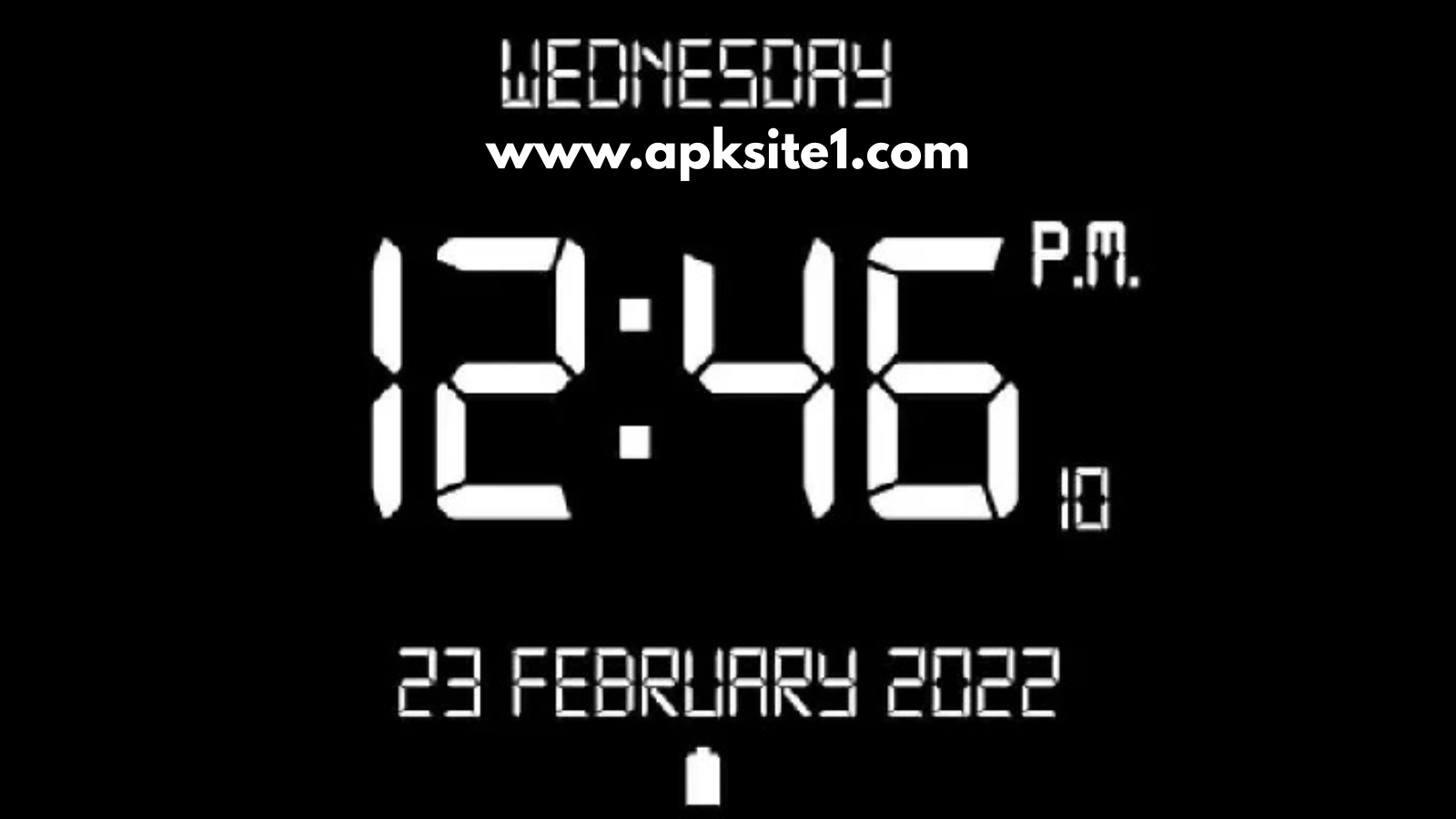
A live time password lock screen app replaces your phone’s standard lock screen with one that uses the current time — or date — as your password. So if it’s 9:47 AM, your password is 0947. At 3:15 PM, it becomes 1515. Every minute, the password changes on its own.
No memorizing. No manually updating. No one can shoulder-surf a static code because the code keeps moving.
It sounds almost too simple — but that simplicity is actually the genius of it.
Why Static PINs Are a Bigger Problem Than You Think
Most people use a 4-6 digit PIN and call it a day. The problem? We’re creatures of habit. Studies have shown that a huge percentage of users choose PINs based on birth years, anniversaries, or repeating digits like 1111 or 0000.
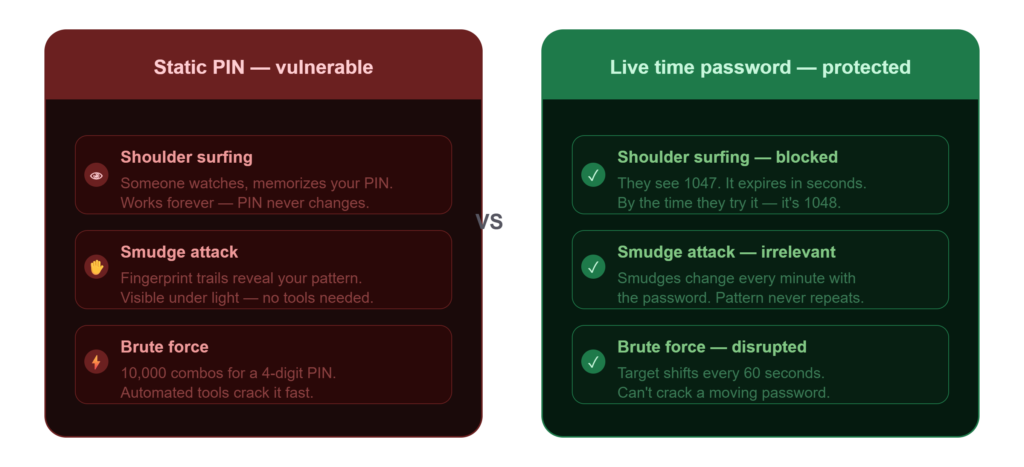
Even if you’re smarter about it, static PINs have real vulnerabilities:
- Shoulder surfing — someone watches you type it at a checkout line or on public transit
- Smudge attacks — your screen leaves oily fingerprint trails that can reveal your pattern
- Brute force — automated tools can try thousands of combinations
I never thought about smudge attacks until a security-conscious colleague pointed at my screen and said, “I can see exactly where you swipe.” That was uncomfortable.
A live time password lock screen app eliminates all three of these vectors at once. Since the password changes every minute, even if someone catches you unlocking your phone, that information is useless 60 seconds later.
How the Live Time Password System Actually Works
The core mechanic is straightforward: the app syncs with your device clock and generates your password dynamically based on a rule you choose at setup.
Common password modes include:
- Time-based: Password = current time in HHMM format (e.g., 10:32 → 1032)
- Date-based: Password = today’s date in DDMM or MMDD format (e.g., June 26 → 2606)
- Combination mode: A blend of time + date for added complexity (e.g., 10322606)
You pick the mode once during setup, and from that point on, you just glance at a clock — mental or physical — before unlocking. It becomes second nature within a day or two.
Setting It Up: Step-by-Step
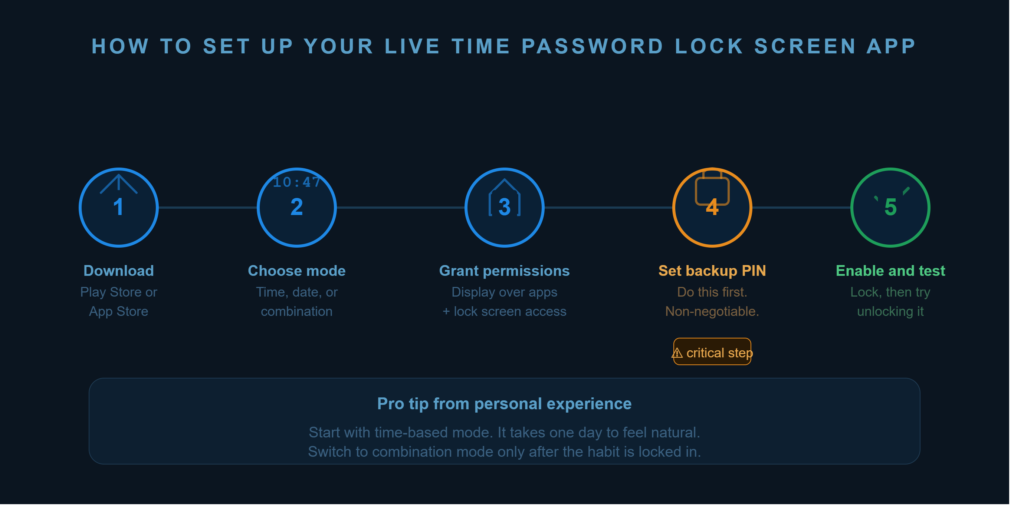
Here’s how I set mine up, and what I’d tell anyone getting started:
Step 1: Download the App
Search “live time password lock screen” on the Google Play Store or Apple App Store. There are a few versions — look for one with solid reviews and recent updates. The last thing you want is a security app that hasn’t been maintained.
Step 2: Choose Your Password Mode
Once installed, open the app and select your preferred password type. I went with time-based because I’m always near a clock and the math is instant. If you want more security, combination mode is worth the tiny extra mental effort.
Step 3: Grant the Necessary Permissions
The app needs permission to display over other apps and manage your lock screen. This is standard for lock screen replacements — without it, the app can’t intercept your default lock screen. Grant these when prompted.
Step 4: Set a Backup PIN
This is non-negotiable. Set a strong backup PIN for situations where you genuinely can’t calculate the live password — maybe you’re groggy at 3 AM or in a rush. Don’t make it something obvious. Treat it like a password manager master key.
Step 5: Enable and Test
Activate the lock screen, then lock your phone and try unlocking it. Check the time, enter the corresponding digits, and confirm it works. Test a few times so the logic feels natural before you rely on it fully.
Real-World Scenarios Where This Actually Helps
At the gym: I leave my phone on the bench sometimes while I grab water. With a static PIN, anyone nearby could memorize it after seeing me unlock once. With a live time password, what they saw is already expired.
With nosy family members: Not accusing anyone, but there are situations where people you live with might be a little too curious. A password they can’t just remember solves that without any awkward conversations.
If your phone gets stolen: Thieves often observe you before grabbing the device. A time-based password they caught a glimpse of is useless once it changes — and they can’t brute force it quickly when the target itself keeps moving.
Business trips and hotels: I’ve been in lobbies or coworking spaces where I unlocked my phone and immediately felt like I was being watched. Dynamic passwords make that paranoia irrelevant.
What I Got Wrong at First
Let me save you from my early mistakes:
I didn’t set a backup PIN right away. First night, woke up at 2 AM, couldn’t do the time math half-asleep, and panicked. Set your backup PIN during initial setup. Every time.
I chose combination mode too soon. I jumped to the most complex option thinking it was automatically better. It was too much mental friction and I kept getting it wrong. Start simple — time-based works great for most people — and move to combination mode only once the habit is locked in.
I forgot about the 12/24 hour format. The app defaults to 24-hour time in some versions, but my mental clock runs on 12-hour. At 2:30 PM I kept entering 0230 instead of 1430. Check your format setting in the app preferences and match it to how your brain works.
I didn’t tell my partner. She picked up my phone to check something while I was driving and had no idea why her attempt failed. If someone in your household regularly uses your phone, brief them on the system or set them up with the backup PIN.
Extra Features Worth Knowing
Most solid live time password lock screen apps come with a few bonus tools:
Intruder Detection: The app silently snaps a photo with the front camera after a set number of failed unlock attempts. You’ll get a gallery of failed intrusion attempts — sometimes it’s just yourself, fumbling at 3 AM, but occasionally it’s genuinely useful.
Custom Themes: You can change the clock style, background image, and overall look of the lock screen. It sounds superficial, but having a clean, attractive lock screen you designed actually encourages you to keep it enabled.
Auto-Lock Timer: Configure how quickly the screen locks after inactivity. I keep mine at 30 seconds. It felt annoying at first but became invisible within a week.
Notification Preview Control: Some apps let you show or hide notification previews on the lock screen. Worth turning off if you get messages with sensitive content.
Visit here, to download an app:
Is It Right for You?
A live time password lock screen app isn’t for everyone. If you frequently hand your phone to others — young kids, elderly parents who call on your device, coworkers borrowing it for a call — the shifting password adds friction that may outweigh the benefit.
But if you’re an individual user who wants meaningfully stronger security without buying a new phone or paying for a premium service, this is one of the more clever solutions I’ve come across. It costs nothing but a few minutes of setup and a small daily habit: glance at the clock before you unlock.
I’ve been running mine for over eight months now. I don’t think about it anymore — it just works. And I’ve had zero moments where I worried about someone gaining unauthorized access to my phone.
The coffee shop incident taught me that phone security is only as strong as your weakest habit. A live time password lock screen app turns that weakness into an actual strength — a password that’s always changing, always current, and always under your control.
Give it a shot. Set the backup PIN first. And maybe don’t use your birth year for anything ever again.
Have you tried a live time password lock screen app? What mode did you use — time-based or combination? Drop your experience in the comments.
For more information, visit: APKSITE1