
ChatGPT slash commands are the one habit that finally stopped me from rewriting the same long prompts every single day.
For a long time I kept a messy Notes file on my phone. Blog outline prompt, summary prompt, proofreading prompt, email reply prompt. Every time I needed one, I would hunt for it, copy it, paste it, and then fix the brackets. Some days I spent more time managing prompts than actually writing.
Then I came across a simple idea: save the long instruction once, give it a short name like /tldr, and just type the name. That’s it. Below is exactly how I set it up, which commands I actually use, and the mistakes that cost me time at the start.
What ChatGPT Slash Commands Really Are (And One Thing People Get Wrong)
Here is the part that surprised me. ChatGPT does not come with most of these commands built in. If you type /hooks in a brand new chat, nothing special happens.
A slash command is just a saved instruction with a nickname. You paste the definition into your chat once, and after that the short version triggers the full instruction. Every command is plain text, which means you can edit it any time.
Each command has two parts:
- The line you type, like
/hooks [topic] - The instruction behind it, like “write 10 opening hooks for a post about [topic] in different styles”
The words inside square brackets are the inputs you add yourself. So /hooks 3 mistakes new gym members make gives you ten hook ideas for that exact topic.
Simple idea. But it changes how fast you work.
The Master Loader: Setting Up ChatGPT Slash Commands in 2 Minutes
Before any command works, ChatGPT needs to know how to treat a message that starts with a slash. That is the job of the Master Loader, a short block of rules you paste at the start of a chat.
In my own words, mine says this:
- Treat any message starting with “/” as a command
- Only run commands from the list I register below
- Run each command exactly as defined, with no intro and no closing summary
- If an input is missing, ask for it in one short question
- If I type an unknown command, say so and suggest the closest ones
- If I type
/help, list every registered command
Then you add the heading “Registered commands:” and paste the definitions you want underneath.
My first mistake was pasting around 40 commands in one go. ChatGPT started getting sloppy and mixing them up. Starting with 5 to 10 commands fixed it immediately. Add more only when you actually need them.
There is also a handy extra: you can register /newcmd [name] [what it should do], and ChatGPT will write new command definitions for you in the same format.
The 7-Step Workflow for ChatGPT Slash Commands
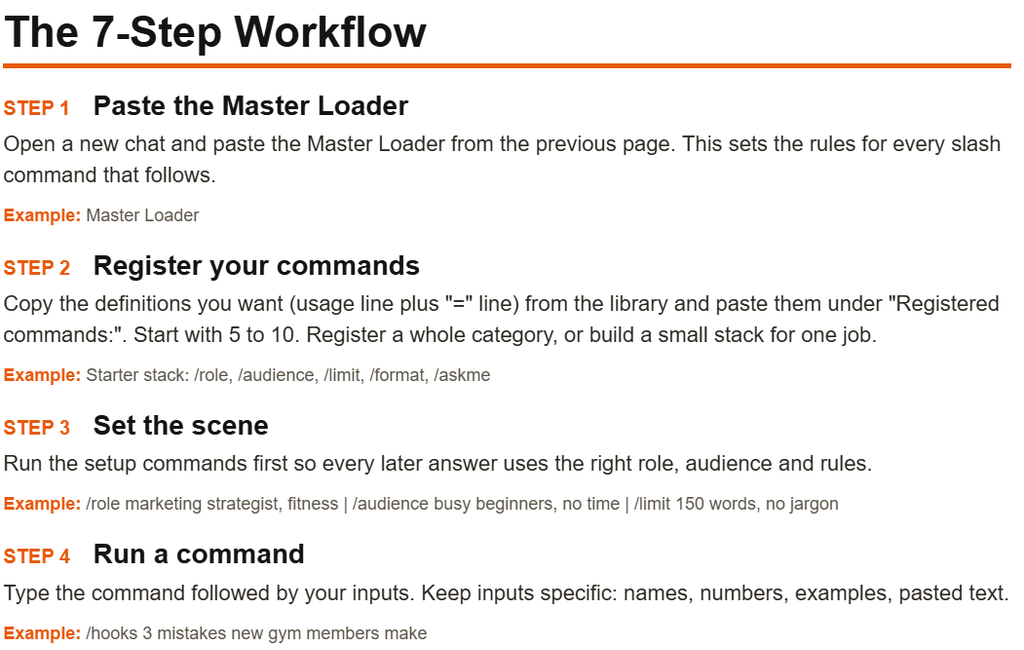
This is the order that worked best for me:
Step 1: Paste the Master Loader into a fresh chat. This sets the rules.
Step 2: Register your commands. Copy the definitions you want and paste them under “Registered commands:”. A good starter stack is /role, /audience, /limit, /format and /askme.
Step 3: Set the scene. Run the setup commands first so every answer uses the right role, audience and limits. For example: /role marketing strategist, fitness, then /audience busy beginners, then /limit 150 words, no jargon.
Step 4: Run a command. Type it with specific inputs. Names, numbers and pasted text beat vague requests every time.
Step 5: Refine, don’t restart. Use /shorten, /simplify, /options, /critique or /next on the last answer.
Step 6: Chain commands. Run several in order in the same chat so each one builds on the last result.
Step 7: Save your stack. Put your Master Loader and favorite definitions into Custom Instructions or a ChatGPT Project so they load in every chat. OpenAI explains how Custom Instructions work in its official help article.
[IMAGE 2 – Place here: simple 7-step flow graphic] Alt text: 7-step workflow for using ChatGPT slash commands from Master Loader to saved stack
The 10 Categories of ChatGPT Slash Commands, With My Favorites
The full library has 106 commands across 10 categories. You don’t need all of them. Here is what each group is for, and the ones I would start with.
1. Foundation and Role-Setting (10 commands)
These set the rules before you ask anything. They include /role, /audience, /think, /askme, /eli5, /limit, /format, /tone, /devil and /assume.
My pick: /askme. It makes ChatGPT ask you the questions it needs before answering. Half of my bad outputs came from skipping this. /assume is also underrated, because it lists the assumptions ChatGPT made so you can check them.
2. Learning and Research (11 commands)
Think /roadmap, /analogy, /tldr, /compare, /quiz, /flashcards, /research, /glossary, /mistakes, /mindmap and /bookbreak.
My pick: /tldr. Paste a long article and you get a short summary plus the questions the text leaves unanswered. That last part is what makes it useful.
3. Writing and Content (12 commands)
This group has /hooks, /outline, /shorten, /story, /newsletter, /headlines, /proof, /repurpose, /thread, /caption, /cta and /voice.
My pick: /voice. You paste a sample of your own writing, and ChatGPT describes your style in a set of rules and follows them afterward. If you write blog posts, this is the difference between generic text and something that sounds like you.
4. Social Media and Marketing (11 commands)
Here you get /calendar, /carousel, /reel, /dmoffer, /magnet, /ad, /position, /gap, /brandvoice, /audit and /tags.
My pick: /gap. Give it a few competitors and it points out topics and angles they are missing. That is a real shortcut for finding content ideas.
5. Business and Productivity (11 commands)
Includes /sop, /actions, /week, /matrix, /reply, /pitch, /negotiate, /decide, /okr, /proposal and /plan.
My pick: /actions. Paste messy meeting notes and get decisions, action items with owners and open questions. Paste raw material, get structure back. That is where ChatGPT saves the most time.
6. Coding and Tech (10 commands)
/explaincode, /debug, /refactor, /tests, /regex, /sql, /review, /readme, /convert and /arch.
My pick: /debug. The trick is to paste the exact error message and tell it what you already tried. Specific input gets specific fixes.
7. Data and Spreadsheets (8 commands)
/clean, /formula, /insights, /chart, /survey, /kpis, /pivot and /table.
My pick: /formula. Describe your columns first, then say what you want. One safety note: never paste private or sensitive data into a chat you don’t control.
8. Image and Video Prompting (11 commands)
/imgprompt, /vidprompt, /productshot, /character, /storyboard, /negprompt, /styleref, /shotlist, /brandvisual, /thumbs and /promptfix.
My pick: /promptfix. Good visual prompts follow one skeleton: subject, setting, camera, lighting, style and constraints. This command rewrites your weak prompt and gives you three variations.
9. Career and Personal Growth (10 commands)
/resume, /interview, /linkedin, /raise, /switch, /habit, /coach, /reflect, /trip and /budget.
My pick: /interview. It asks one question at a time, gives feedback on each answer and scores you at the end. These work best with real details like your actual experience and numbers.
10. Advanced Power Commands (12 commands)
/critique, /verify, /panel, /reverse, /template, /custominstr, /project, /score, /recap, /next, /simplify and /options.
My pick: /recap. When a chat gets too long, it summarizes everything decided so far so you can start a fresh chat without losing context. /critique and /score are also great for turning a first draft into something you’d actually publish.
[IMAGE 3 – Place here: category overview graphic with all 10 groups] Alt text: 10 categories of ChatGPT slash commands in one cheat sheet
Command Chains: Where ChatGPT Slash Commands Really Save Time
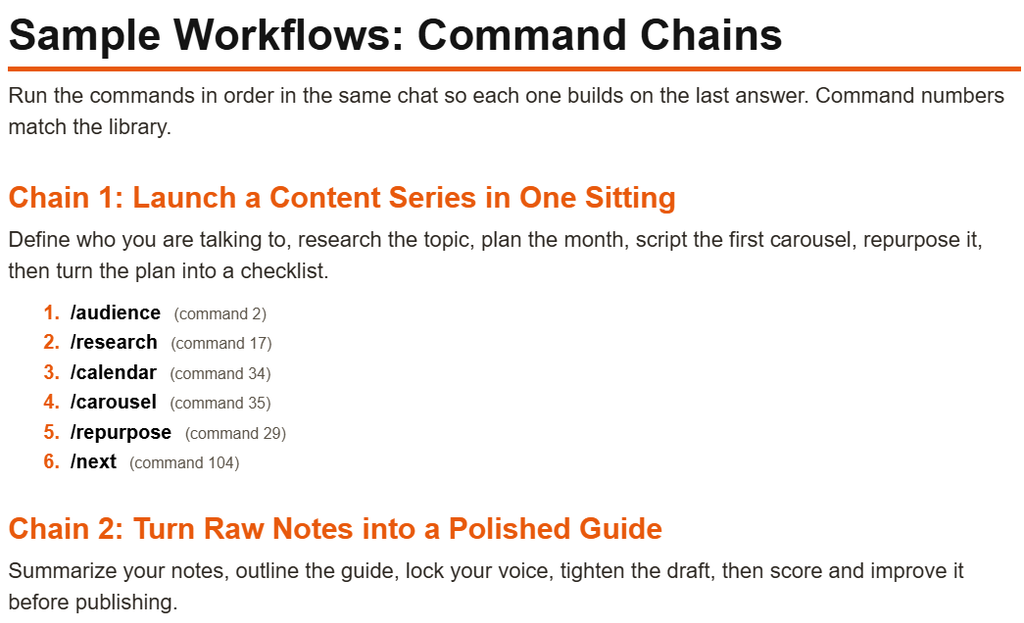
Single commands are nice. Chains are where it gets powerful. You run commands in order, in the same chat, and each one builds on the last answer.
Launch a content series in one sitting: /audience → /research → /calendar → /carousel → /repurpose → /next
Turn raw notes into a polished guide: /tldr → /outline → /voice → /shorten → /score
Create a visual campaign: /brandvisual → /character → /storyboard → /vidprompt → /negprompt → /promptfix
Prepare for a career move: /switch → /resume → /linkedin → /interview → /raise
The second chain is close to how I plan blog posts now. Summarize my research notes, outline the post, lock my voice, tighten the draft, then score it. I still write and fact-check the final version myself, because ChatGPT can sound confident and be wrong.
Mistakes to Avoid With ChatGPT Slash Commands
I made most of these, so learn from me:
- Registering too many commands at once. Start with 5 to 10.
- Vague inputs.
/hooks fitnessgives bland results./hooks 3 mistakes new gym members makegives usable ones. - Starting over after every answer. Refine with
/shortenor/simplifyinstead. - Trusting every answer. Use
/verifyor/assumeon anything factual, then check important claims against real sources. - Skipping the setup commands. Without
/roleand/audience, answers feel random. - Forgetting to save your stack. Don’t re-paste everything each time. Put it in Custom Instructions or a Project.
Final Thoughts
You don’t need 106 commands. I use maybe a dozen regularly. What matters is that the commands you do use are saved, tested and edited to match how you work.
My suggestion: paste the Master Loader today, register five commands, and use them for one week. Add new ones only when you catch yourself retyping the same instruction. And since every command is just text, change the wording until the output sounds like you.
Start small. The time you save adds up faster than you’d expect.
If you’re building a bigger workflow around AI tools, my guides on AI side hustles and building AI agents are a good next read. For anything you publish, Google’s guidance on helpful content is worth a look.
Are ChatGPT slash commands built into ChatGPT?
Mostly no. You create them yourself by pasting a definition into your chat. After that, typing the short command runs the saved instruction.
Do I have to paste the commands again in every new chat?
Not if you save them. Put your Master Loader and favorite definitions into Custom Instructions or a ChatGPT Project, and they load automatically.
How many commands should a beginner register?
Start with 5 to 10. A solid starter stack is /role, /audience, /limit, /format and /askme.
What happens if I type a command I haven’t registered?
If your Master Loader includes the rule, ChatGPT tells you the command isn’t registered and suggests the closest matches.
Can I create my own commands?
Yes. Register /newcmd, type a name and what it should do, and ChatGPT writes the definition in the same format.
Are ChatGPT slash commands safe to use with work data?
The commands themselves are just text, but avoid pasting private or sensitive data into any chat you don’t control.