

Android 16 theft protection is not something I ever thought I’d write about with this much gratitude — until a guy on a bike snatched my phone right out of my hand outside a coffee shop in July.
I was standing there, phone unlocked, scrolling through Google Maps trying to figure out which street I’d parked on. One second it was in my hand. The next second it was gone, and so was the guy, weaving through traffic before I’d even processed what happened.
My first thought wasn’t “there goes $900.” It was “oh no, my banking app is logged in.” That’s the moment that actually matters, and it’s the moment most people never think about until it’s too late.
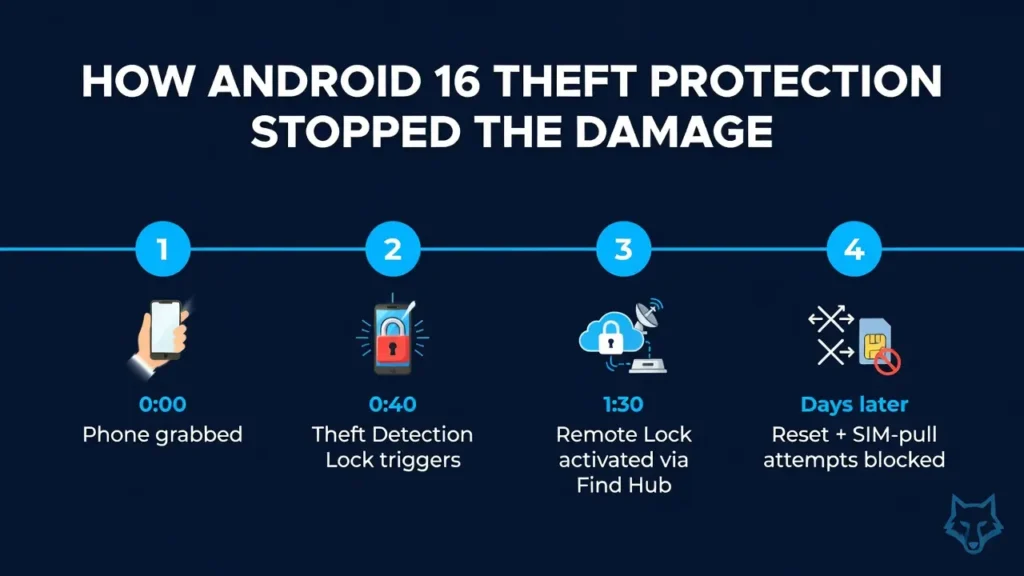
Here’s the thing though — because I’d updated to Android 16 a few weeks earlier and (mostly by accident) turned on a few of its newer protections, the thief got a locked, useless brick within about 40 seconds. No banking access. No email. No way to reset it and resell it clean. I found this out later from Google’s Find Hub activity log, which is a story in itself.
This isn’t a “here’s what Google announced” recap. This is what I actually experienced, what I had already set up, what I wish I’d set up, and the exact steps I’d tell a friend to follow today — whether your phone gets stolen or you just want to stop worrying about it.
What Android 16 Theft Protection Actually Changed
Google didn’t build one single “theft protection” toggle. It’s a bundle of smaller features working together, and most people have no idea half of them exist because they’re buried a few menus deep.
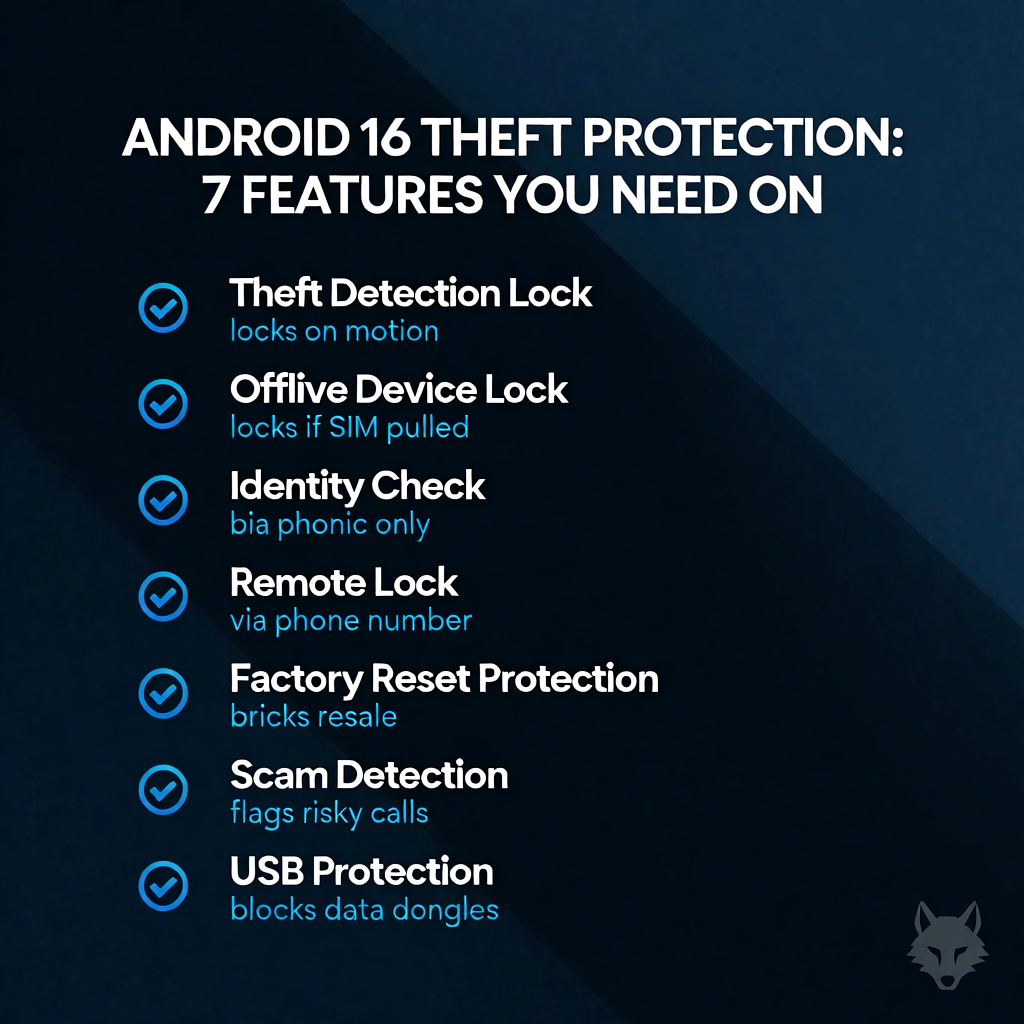
The core Android 16 theft protection features I ended up relying on that day were:
- Theft Detection Lock — uses on-device AI (accelerometer, gyroscope, Wi-Fi signals) to sense the specific motion of a phone being grabbed and locks the screen automatically.
- Offline Device Lock — if a stolen phone gets switched to airplane mode or has its SIM pulled to dodge tracking, the screen locks itself anyway.
- Identity Check — requires biometric verification (not just your PIN) for sensitive settings changes when the phone is on an unfamiliar network.
- Remote Lock via phone number — you can lock your device from google.com/android/find using just your phone number, before you’ve even found your laptop or logged into a full account recovery flow.
- Factory Reset Protection — makes the phone functionally useless to resell if someone tries to wipe it without your Google account credentials.
- Scam Detection in Phone by Google — flags suspicious in-call behavior, like someone trying to talk you into disabling Play Protect.
- USB Protection (Advanced Protection mode) — blocks data access over USB when the screen is locked, which stops the cheap “forensic dongle” trick thieves use.
I hadn’t deliberately enabled all of these. Some came on by default with the Android 16 update. That’s actually the biggest lesson from this whole experience — Google quietly switched a lot of this to “on by default” for eligible devices, but a few of the strongest protections still need you to flip them on yourself.
Step-by-Step: Setting Up Android 16 Theft Protection Properly
I went back through my settings afterward (on my replacement phone) and did this properly instead of relying on luck. Here’s exactly what I did, in order.
Step 1: Turn on Theft Detection Lock
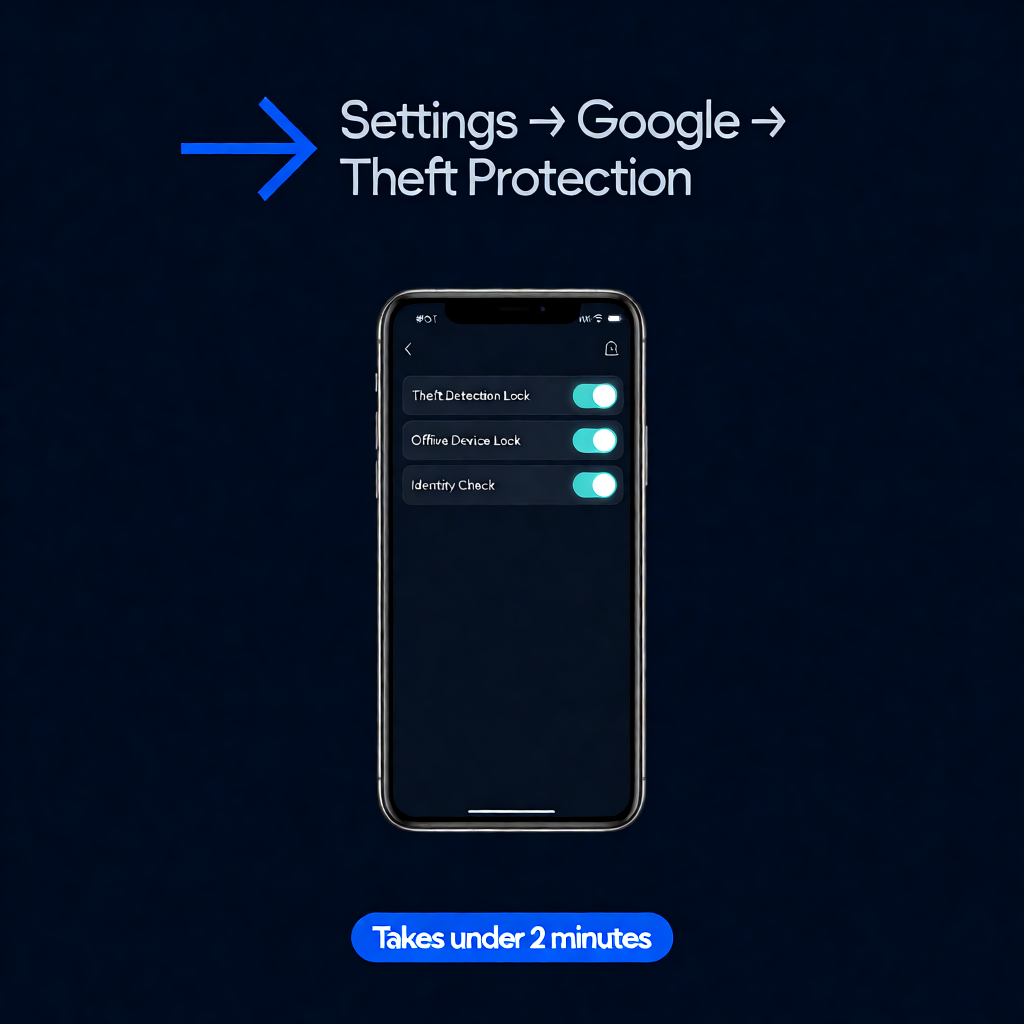
Go to Settings > Google > Theft Protection. Toggle on Theft Detection Lock. This one uses motion sensors, so it needs a few seconds of setup calibration — Google will ask you to hold the phone normally first.
Mistake I made the first time: I tested it by literally throwing my old phone onto my bed to see if it would trigger. It didn’t, because a gentle toss isn’t the same motion signature as a grab-and-run. Don’t waste your evening like I did — trust that it’s built for the real scenario, not a living-room stress test.
Step 2: Enable Offline Device Lock
Same menu, right below Theft Detection Lock. This one locks your phone if it suddenly goes offline in a way that looks suspicious, like the SIM being removed right after the phone leaves your hand.
Step 3: Set Up Identity Check
Go to Settings > Security & Privacy > More Security Settings > Identity Check. This forces biometric authentication (fingerprint or face) instead of just a PIN when your phone is outside your usual trusted locations. A stolen PIN or a shoulder-surfed passcode won’t be enough to change your critical settings anymore.
Step 4: Bookmark the Remote Lock Page
Save google.com/android/find somewhere you’ll actually remember — I put it in my email signature notes, which sounds ridiculous but meant I could lock my account from a borrowed laptop within two minutes of realizing my phone was gone.
Step 5: Turn on Advanced Protection
Settings > Google > Advanced Protection. This bundles USB Protection, Intrusion Logging (rolling out gradually), and stricter Play Protect scanning into one switch. Fair warning: it makes sideloading apps from unknown sources harder, which annoyed me once when I was testing a beta app. That’s the trade-off, and for most people it’s worth it.
Step 6: Double-check Factory Reset Protection is linked to your actual Google account
This one’s automatic if you’re signed in, but it’s worth confirming under Settings > Google > Manage your Google Account > Security. If a thief tries to factory reset your phone, it becomes unusable without your login — which is exactly what happened to mine, based on the activity log I saw days later.
What Actually Happened After Mine Got Stolen
Within about a minute of the theft, I’d borrowed a stranger’s phone at the same café, logged into Find Hub, and hit Remote Lock. The activity log later showed the thief tried to power the phone off, remove the SIM, and eventually attempted a factory reset from recovery mode. Offline Device Lock and Factory Reset Protection stopped all three attempts from doing anything useful for them.
I never got the physical phone back. Realistically, almost nobody does. But my contacts, my banking apps, my email, and my photos were never touched. That’s the actual win here — Android 16 theft protection isn’t about getting your hardware back, it’s about making the data worthless to whoever has it.
Common Mistakes People Make With These Settings
- Assuming it’s all automatic. Some features are on by default depending on your device and region, but Identity Check, Advanced Protection, and sometimes Theft Detection Lock still need a manual toggle.
- Not testing Remote Lock before you need it. Log into Find Hub once now, while you’re calm, so you’re not fumbling through account recovery during an actual robbery.
- Ignoring the in-call scam warnings. A friend of mine dismissed a “Likely Scam” banner during a call because she assumed it was overly cautious. It wasn’t — the caller was trying to walk her through disabling Play Protect.
- Thinking a screen lock alone is enough. A PIN or pattern stops casual snooping, not a determined thief who knows how to pull a SIM or boot into recovery mode.
A Few Honest Limitations
I want to be straight with you here — this isn’t magic. Theft Detection Lock relies on motion sensors, so a phone stolen while sitting still on a table (rather than grabbed from your hand) might not trigger it immediately. Some of these features are still rolling out gradually by device and carrier, so if you’re on an older Samsung or a budget Android phone, you might not see every option listed above yet. And no software fix gets your actual physical phone back — insurance or your carrier’s tracking tools are still worth having as backup.
Frequently Asked Questions
Does Android 16 theft protection work if my phone is turned off?
Not for real-time detection, no — Theft Detection Lock needs the phone to be on and moving. But Factory Reset Protection and Find Hub location history still apply once it’s powered back on and connects to a network.
Do I need a Pixel or Samsung phone for these features to work?
Most core protections are rolling out across Android 16 devices from multiple manufacturers, but the most advanced ones (like Identity Check and USB Protection) launched first on Pixel and Samsung One UI 7 phones, with wider rollout happening gradually.
Will Advanced Protection stop me from installing normal apps?
No — it only restricts installing apps from outside the Play Store (sideloading) and adds extra verification for risky changes. Regular Play Store app installs work exactly the same.
Is Theft Detection Lock draining my battery?
I watched my battery stats for a week after enabling it and didn’t notice a measurable difference. It uses existing motion sensors rather than constant GPS or camera use.
What should I do the moment I realize my phone is stolen?
Borrow any phone or computer, go to google.com/android/find, and hit Remote Lock immediately — do this before calling your carrier or filing a police report. Locking the data matters more in that first minute than anything else.
For more information, visit: APKSITE1