

Three months ago I almost bought a new phone.
Not because mine was old — it was barely a year and a half in — but because it had started choking every time I switched between WhatsApp, Chrome, and a half-loaded TikTok tab. You know that moment when you tap back to an app and it just… reloads from scratch? That was happening to me ten times a day.
I was already comparing prices on a new Xiaomi when a friend, who fixes phones for a living, laughed and asked me one question: “Have you even tried bumping your virtual RAM?”
I hadn’t. Honestly, I didn’t even know that was a real setting sitting inside my phone the whole time. So before you spend money you probably don’t need to spend, let me walk you through what I actually did — including the part where I messed it up the first time.

What Virtual RAM Actually Is (In Plain English)
Here’s the simplest way I can put it, based on how my friend explained it to me over chai.
Your phone’s real RAM is like a small desk. The more apps you have open, the more stuff is piled on that desk. When the desk runs out of room, your phone has to shove something off to make space — which is that annoying reload you keep seeing.
Virtual RAM borrows a slice of your unused internal storage and turns it into extra “desk space.” It’s not as fast as real RAM, but it’s enough to stop your phone from constantly clearing the desk every time you switch tasks.
The reason this matters in 2025 is that almost every major brand — Samsung, Xiaomi, Vivo, Oppo, Realme, OnePlus — has quietly baked this feature into their software. Most people just never go looking for it.
How I Actually Turned It On (Step by Step)
My phone is a Redmi running MIUI, so that’s the version I’ll walk through first — but I’ll cover the other brands too, since I ended up testing this on my sister’s Samsung and a friend’s OnePlus while writing this.
On Xiaomi / Redmi / Poco
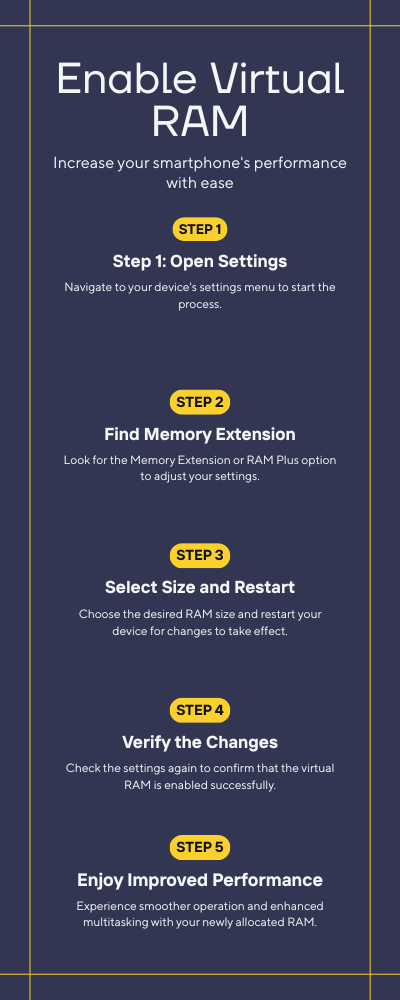
- Open Settings.
- Scroll to Additional Settings, then tap Memory Extension.
- Flip the toggle on.
- Pick how much you want to add — I went with 3GB the first time.
- Restart the phone once it’s done.
Small thing nobody warns you about: it doesn’t kick in properly until after that restart. I sat there for a good ten minutes the first time wondering why nothing changed, before I realized I’d skipped that step.
On Samsung
- Head into Settings > Battery and device care.
- Tap Memory.
- You’ll see RAM Plus sitting right there.
- Choose your amount (Samsung usually caps you around 8GB depending on the model).
- Restart to apply it.
I did this on my sister’s Galaxy and honestly it took less than two minutes.
On Realme / Oppo
- Go to Settings > About Phone.
- Look for RAM Expansion (sometimes just labeled “RAM”).
- Select your size.
- Tap restart.
On Vivo
- Settings.
- RAM & Storage Space > RAM Expansion.
- Turn it on, pick a size, restart.
On OnePlus
- Settings > System > RAM Expansion.
- Enable it, choose the size, restart.
Across every one of these, the pattern is basically the same: find the memory settings, pick a number, restart. None of it needs root access, a PC, or any technical background. If you can update an app, you can do this.

What About iPhones?
I get asked this a lot, so I’ll be straight with you — Apple doesn’t give users a virtual RAM toggle. iOS handles memory management on its own, and Apple has kept it that way on purpose.
If you’re on an iPhone and dealing with slowdowns, the closest you can get is:
- Offloading unused apps (Settings > General > iPhone Storage)
- Actually closing apps you’re not using instead of leaving fifteen tabs open
- Keeping iOS updated
- Restarting your phone at least once a week
It’s not the same fix, but it helps.
The Mistake I Made (So You Don’t Repeat It)
Here’s where I have to be honest with you. The first time I tried this, I got a little greedy and set my virtual RAM extension to the maximum my phone allowed.
Big mistake.
My storage was already sitting close to full, and cranking virtual RAM up on top of that made everything slower, not faster — because the phone was now constantly reading and writing to storage that barely had room to breathe.
Once I freed up about 6GB of space (deleted some duplicate photos and an app I hadn’t opened in months) and dropped my virtual RAM allocation down to 3GB instead of the max, the phone actually felt smoother. Multitasking stopped feeling like a fight.
Lesson: more isn’t automatically better. Your storage speed matters just as much as the amount you allocate.
Does It Actually Work, Or Is It Just Placebo?
I wanted to know this too, so I ran a rough test — opened the same six apps in the same order, before and after enabling virtual RAM, and timed how long it took for apps to reload when switching back.
Before: apps were reloading almost every time I came back to them. After: most apps stayed exactly where I left them, and reloads dropped noticeably.
What it didn’t do: make heavy games load faster or boost graphics performance. If you’re expecting a flagship-level jump in gaming FPS, this isn’t that. Think of it as something that keeps your everyday multitasking smooth, not a performance upgrade for demanding apps.
A Few Things I’d Tell a Friend Before They Try This
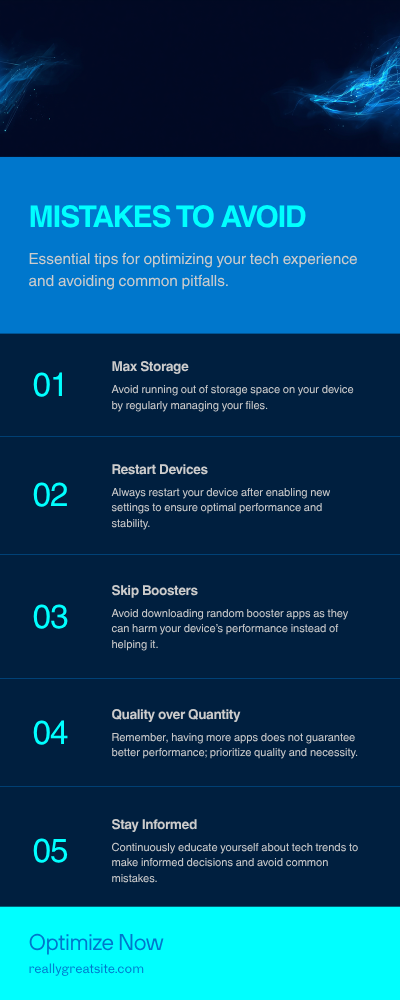
- Check your free storage first. If you’re under 5-6GB free, clean up before you turn this on.
- Start smaller than the max. Try 2-3GB first and see how it feels before maxing it out.
- Restart after enabling it. It genuinely doesn’t apply properly until you do.
- Don’t expect a miracle for gaming. It helps multitasking and app switching far more than heavy 3D games.
- Only use trusted third-party boosters if you go that route, and check what permissions they’re asking for. I’d honestly stick to the built-in settings — I never needed a third-party app once I found the native option on my own phone.
Common Mistakes People Make With This
Since I went down this rabbit hole, I’ve seen a few patterns pop up in comments and forums that are worth flagging:
- Allocating virtual RAM on an already-full phone. This backfires almost every time.
- Assuming it fixes gaming lag. It mostly won’t — that’s a GPU/processor limitation, not a RAM one.
- Forgetting to restart, then assuming the feature doesn’t work.
- Downloading random “RAM booster” apps from outside the Play Store. If you want a third-party option, stick to the Play Store and read the permissions.
Final Thoughts
I almost spent money on a new phone for a problem that took me five minutes and zero rupees to fix. If your phone has started feeling sluggish and it’s not ancient hardware, this is genuinely worth trying before you assume you need an upgrade.
It won’t turn a budget phone into a flagship. But if what’s bothering you is apps reloading, multitasking feeling clunky, or your phone struggling to keep more than two things open at once — increasing your mobile virtual RAM is one of those rare fixes that’s actually free, actually works, and takes less time than reading this article did.
For more information, visit: APKSITE1