I almost returned my phone over this.
Not because it was broken — because I’d just upgraded from an old Redmi with a side-mounted fingerprint sensor to a phone with an in-display one, and the default unlock animation was… a plain white ripple. That’s it. My cousin’s phone had this glowing blue wave that pulsed every time he touched the screen, and mine looked like a Windows loading screen from 2009.
That’s how I ended up down the rabbit hole of in-display fingerprint animation apps. A few weeks, two phones, and one accidentally-drained battery later, here’s everything I actually learned — not the marketing version, the “I tried this at 11pm and regretted it” version.
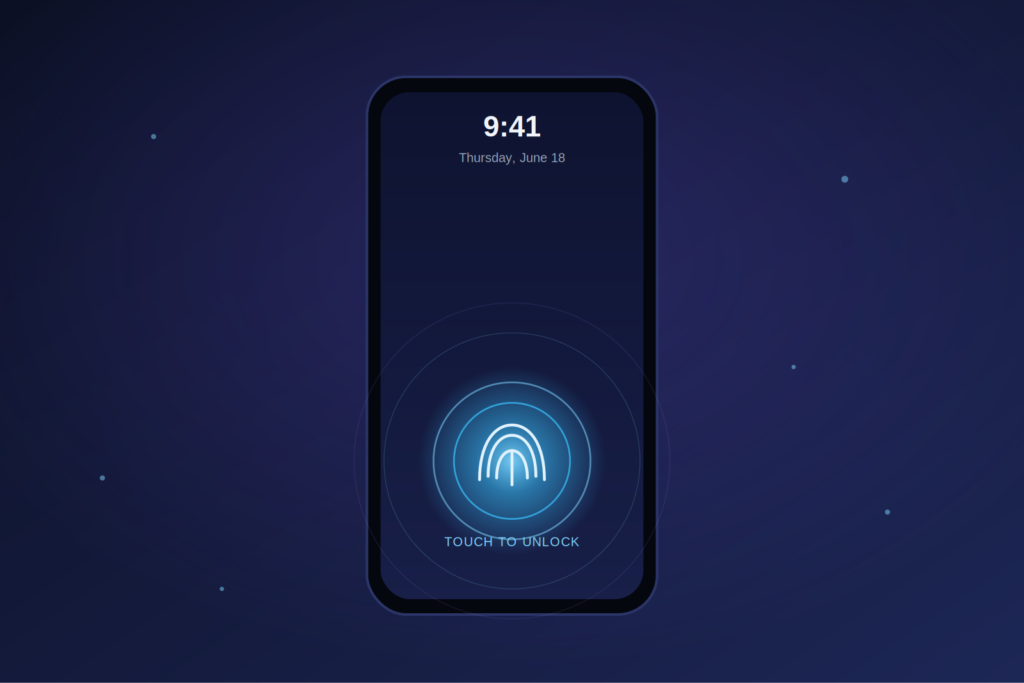
What Is an In-Display Fingerprint Animation App, Really?
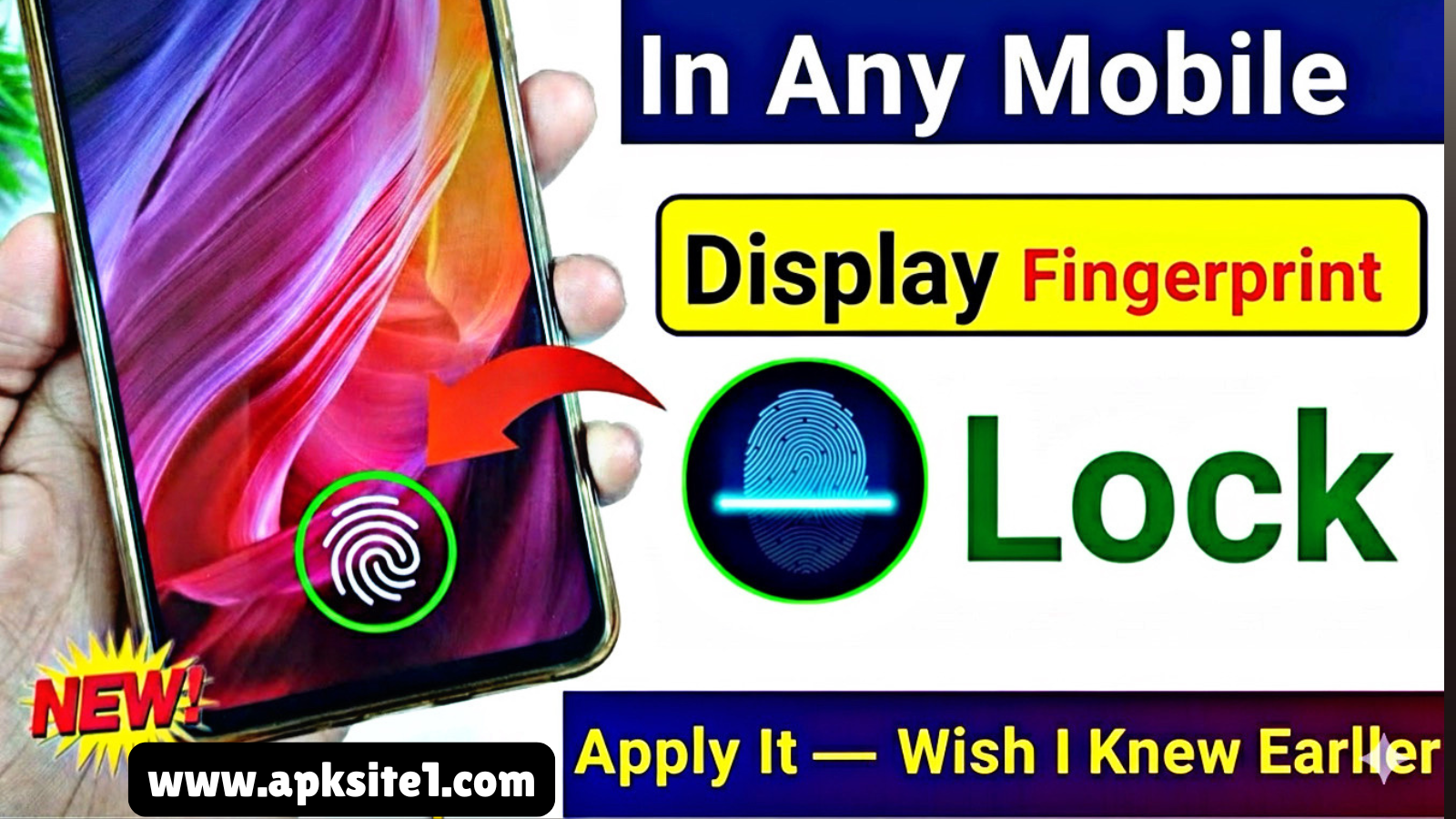
Strip away the jargon and it’s simple: it’s an app that replaces or enhances the little visual effect your phone shows when you place your finger on the screen to unlock it. Think glowing rings, particle bursts, neon waves, or a custom icon that lights up under your finger.
It doesn’t touch your actual security — your fingerprint data still lives inside your phone’s secure hardware, completely separate from whatever app you install. The animation app just draws a layer on top. I want to get that out of the way early because I genuinely thought, the first time I installed one, that I was somehow giving an app access to my biometric data. I wasn’t. I checked the permissions twice before I believed it.
Why I Bothered With This in the First Place
Honestly? Vanity, partly. But also because unlocking your phone is something you do hundreds of times a day, and a tiny animation makes that moment feel less robotic. After living with one for about a month, here’s what actually stuck with me:
- It made an older phone (a 2-year-old Galaxy A52) feel less dated when I handed it to friends.
- I started noticing when the animation lagged, which weirdly helped me catch a background app that was eating RAM.
- It gave me a reason to actually explore my phone’s display settings, which I’d never touched before.
It’s a small thing. But small things compound, especially on a device you stare at fifty times a day.
Setting One Up: What I Did Step by Step
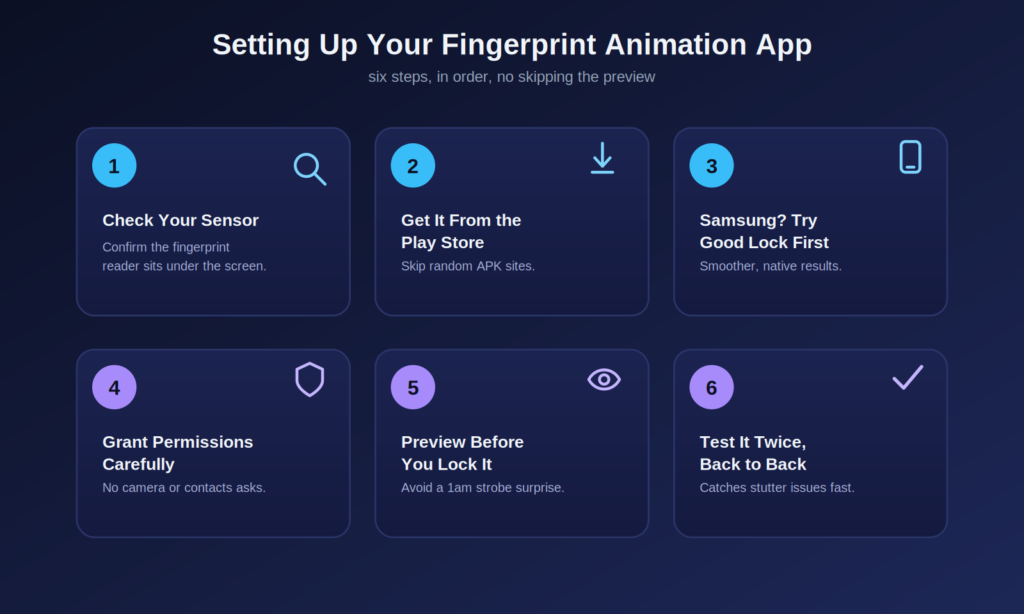
I’ll walk you through the general process, since most in-display fingerprint animation apps follow a similar flow whether you’re on a Samsung, Xiaomi, OnePlus, or Pixel device.
Step 1: Check if you actually have an in-display sensor. This sounds obvious, but I’ve seen people install these apps on phones with rear or side sensors and wonder why nothing happens. If your fingerprint sensor is a visible spot on the back or side button, this won’t work the way you expect.
Step 2: Download from the Play Store, not a random APK site. I learned this one the hard way on my old phone — grabbed an APK from a sketchy forum because the Play Store version had ads, and ended up with a flashlight permission request from a fingerprint animation app. That’s a red flag. Stick to the Play Store. Apps like “Fingerprint Style – Animation Effect” and “AOD Fingerprint Animation” are common, legitimate options with decent install bases and reviews you can actually read through.
Step 3: If you’re on Samsung, try Good Lock first. This was the one that genuinely impressed me. Samsung’s free Good Lock app has a module called AOD+ (Always On Display Plus) that lets you customize the fingerprint unlock effect natively, with way smoother integration than most third-party apps. If you have a Galaxy phone, download Good Lock from the Galaxy Store, install the AOD+ plugin inside it, and look for the fingerprint animation section. No extra battery-draining overlay app needed.
Step 4: Grant the permissions it asks for — but read them. Most legitimate apps will ask for “display over other apps” and sometimes accessibility access (to detect when your screen is in the locked state). What it should NOT ask for is camera, microphone, contacts, or SMS access. If it does, that’s your cue to uninstall.
Step 5: Pick your animation and preview it before locking your phone. Almost every app has a preview button. Use it. I skipped this once, applied a “high-energy particle burst” animation, locked my phone, and then panicked for a second when my screen lit up like a strobe light at 1am in a dark room. Preview first.
Step 6: Test it for real — lock, wait, unlock, repeat. Don’t just test once. Lock your phone, wait 10 seconds, unlock. Then do it again immediately. Some animations look great the first time but stutter on the second or third attempt if the app isn’t well optimized.
The Mistakes That Actually Cost Me Something
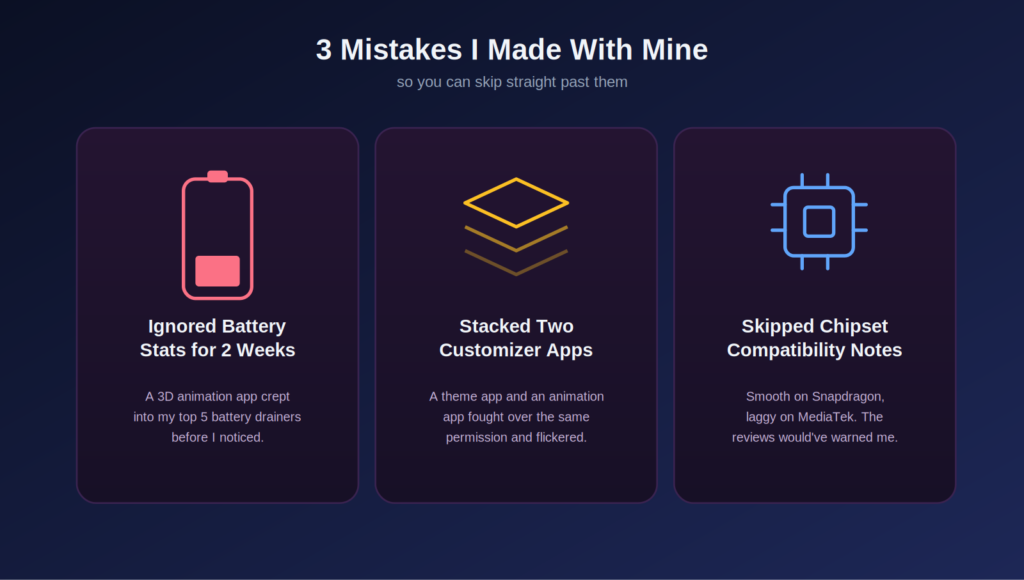
I want to be upfront about what went wrong, because most “guide” articles skip this part.
Mistake 1: I ignored battery stats for two weeks. I installed a fairly flashy 3D animation app and didn’t think much of it until I checked my battery usage and saw it sitting in the top five apps — on a phone where I barely use a quarter of my installed apps that much. Lighter, 2D animations exist for a reason. Save the heavy ones for when you’re not worried about squeezing out the last 10% of battery life.
Mistake 2: I stacked two customization apps at once. I had a lock screen theme app and a separate fingerprint animation app running together, and they fought over the same “draw over apps” permission. The result was a flickering mess that took me almost twenty minutes to diagnose. If you’re using a theme app, check whether it already includes fingerprint animation — don’t double up.
Mistake 3: I didn’t check compatibility notes in the reviews. Some apps work beautifully on Snapdragon chipsets but lag noticeably on MediaTek processors (or vice versa). I skipped the reviews the first time and just looked at the screenshots. Don’t do that. Scroll through the most recent reviews specifically for your phone brand.
A Few Real Examples From My Own Testing
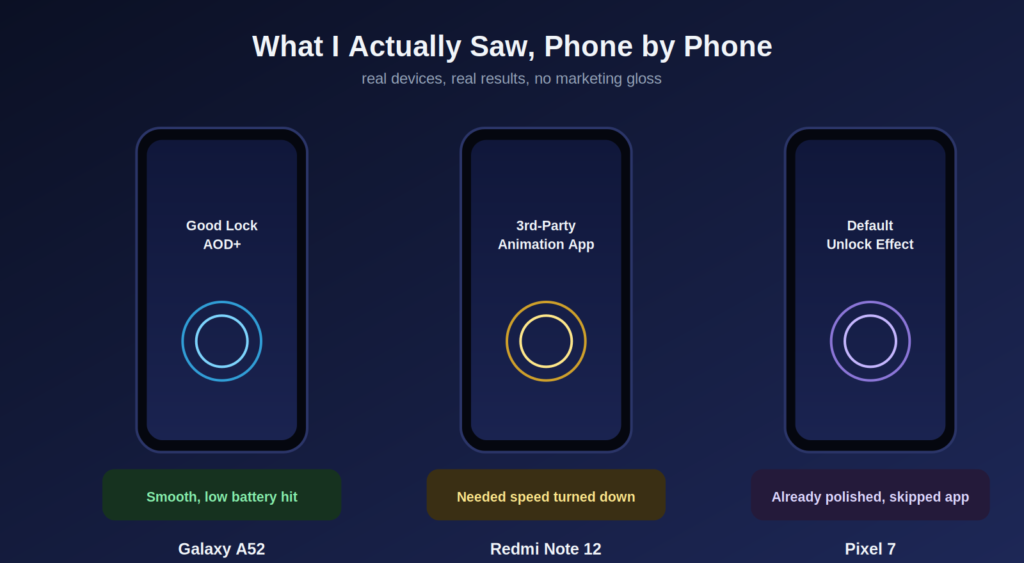
On my Galaxy A52, Good Lock’s AOD+ gave me a clean, native-feeling pulse animation with zero noticeable battery impact over a week of normal use.
On a friend’s Redmi Note 12, a Play Store app called “Fingerprint Animation Effect” worked fine but needed the animation speed turned down from “fast” to “normal” — at full speed it occasionally lagged behind the actual unlock by half a second, which felt off.
On a Pixel 7, third-party fingerprint animation apps are honestly less necessary, since Google’s default unlock animation already looks polished. I tried one anyway out of curiosity and didn’t notice enough improvement to justify keeping it installed.
Click here, To download App:
When It’s Probably Not Worth It
If you’re on a budget phone with under 4GB of RAM, I’d skip the heavier animation apps entirely. The visual gain isn’t worth the lag you’ll feel elsewhere. Also, if your phone is already running hot or your battery health has dropped below 80%, adding another background-active app isn’t doing you any favors.
Final Thoughts
I kept my fingerprint animation setup in the end — just a simpler one than I started with. There’s something genuinely satisfying about a small visual reward every time you pick up your phone, even after using it for months. But it’s worth treating like any other customization: test it properly, watch your battery for the first week, and don’t be afraid to uninstall if it’s not pulling its weight.
If you’re going to try one thing from this whole post, make it this: check Good Lock first if you’re on Samsung, and read the most recent reviews for your specific phone model before installing anything else. That alone would’ve saved me a few headaches.
For more useful information, visit here: APKSITE1