

My WhatsApp chat history backup literally saved me last year.
I dropped my phone in a sink full of water. Dead in under two seconds. Three years of conversations — wedding planning messages with my wife, work project threads, voice notes from my late uncle — all gone. Or so I thought.
Twenty minutes later, after borrowing my wife’s phone to set up a new SIM and downloading WhatsApp on a replacement device, everything was back. Every message, every photo, every voice memo. I genuinely got a little emotional.
The only reason that worked? I had set up automatic WhatsApp chat history backup a long time ago and completely forgotten about it. It just quietly ran every night while I slept.
If you haven’t done that yet — or you’re not sure whether yours is actually working — this is the guide you need to read right now.
Table of Contents
- Why WhatsApp Chat History Backup Matters More Than You Think
- How WhatsApp Stores Your Chats (Two Places, Not One)
- How to Backup WhatsApp Chat History on Android (Step-by-Step)
- How to Backup WhatsApp Chat History on iPhone (Step-by-Step)
- How to Restore WhatsApp Chats on a New Phone
- Finding WhatsApp Backup Files Manually on Android
- Can You Recover Deleted WhatsApp Messages?
- WhatsApp Account Info: What Data Does WhatsApp Keep?
- Mistakes People Make That Cost Them Their Chats
- Habits That Will Protect Your Messages Long-Term
Why WhatsApp Chat History Backup Matters More Than You Think {#why-backup-matters}
Most people treat WhatsApp backups the way they treat smoke detector batteries — they’ll get to it eventually. Until the moment they actually need it and realize they never did.
Here’s what typically wipes out people’s chat history without warning:
- Switching phones and assuming the transfer happens automatically (it doesn’t)
- Doing a factory reset to fix a laggy phone without backing up first
- Getting a new number and not realizing the old account gets wiped
- Phone storage filling up so silently that old WhatsApp backups start getting deleted
- Accidentally uninstalling WhatsApp and reinstalling it fresh
None of these are unusual situations. They happen constantly. And every single one is preventable if your WhatsApp chat history backup is properly configured.
The good news? Setting it up takes about three minutes. And once it’s running, you genuinely don’t have to think about it again.
How WhatsApp Stores Your Chats (Two Places, Not One) {#how-whatsapp-stores-chats}
Before jumping into the steps, it’s worth understanding how WhatsApp actually handles your data — because most guides skip this and it leads to confusion when something goes wrong.
Local Storage Backup
Every night around 2 AM, WhatsApp automatically saves a copy of your chats directly to your phone’s internal storage. On Android, these files live in a folder called WhatsApp/Databases. On iPhone, it’s handled internally through the system.
The catch: if your phone is gone — stolen, broken, submerged — the local backup goes with it. It’s the same basket holding all your eggs.
Cloud Backup (Google Drive or iCloud)
This is the one that actually matters. When you connect WhatsApp to Google Drive (Android) or iCloud (iPhone), your WhatsApp chat history backup gets uploaded off your device and onto a server. New phone, same account — everything comes back like you never left.
Most people think this is set up by default. It isn’t. You have to enable it yourself, and there’s a setting most people miss that causes silent backup failures. I’ll cover that below.
How to Backup WhatsApp Chat History on Android (Step-by-Step) {#backup-android}
Show Image alt: WhatsApp chat history backup settings screen on Android
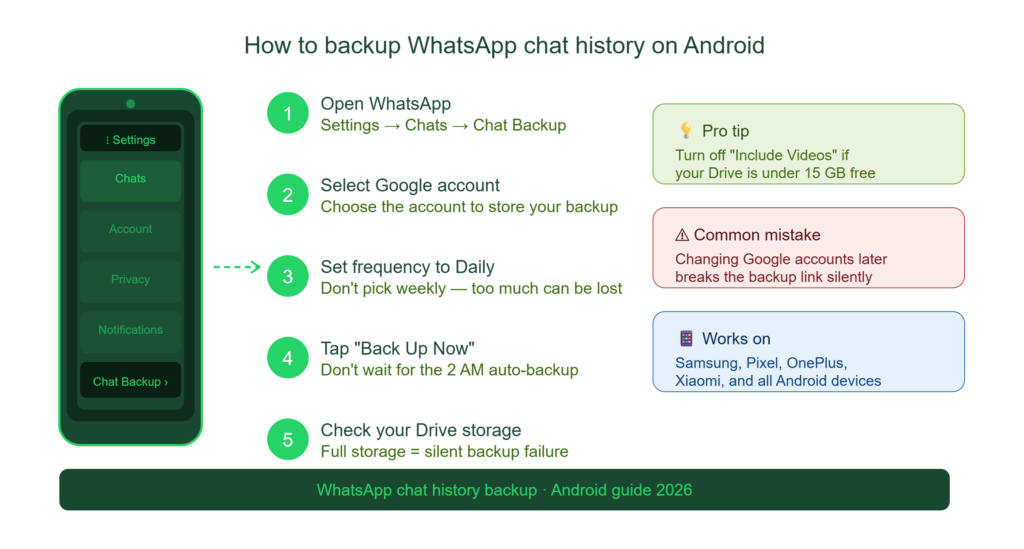
This works on Samsung, Pixel, OnePlus, Xiaomi — any Android device.
Step 1: Open WhatsApp. Tap the three-dot menu in the top-right corner.
Step 2: Go to Settings → Chats → Chat Backup.
Step 3: Under “Back up to Google Drive,” tap Daily as your frequency. Weekly sounds convenient, but if something happens on a Wednesday and your last backup was Sunday, you’re losing four days of conversations.
Step 4: Tap Google Account and select (or sign into) the Google account you want to use. This is the account your backup gets tied to — remember it.
Step 5: Tap Back Up Now to run an immediate manual backup. Don’t skip this. The first automatic one might not run until 2 AM.
One setting people miss: Under the backup screen, you’ll see an option labeled Include Videos. If you have a lot of video in your WhatsApp chats — and most people do — turning this on will eat through your Google Drive storage quickly. Google gives 15GB free. If that fills up, your backup stops working silently. Check your Drive storage at drive.google.com to see where you stand.
How to Backup WhatsApp Chat History on iPhone (Step-by-Step) {#backup-iphone}
Show Image alt: WhatsApp chat history backup to iCloud on iPhone
Step 1: Open WhatsApp on your iPhone. Tap Settings (bottom-right).
Step 2: Go to Chats → Chat Backup.
Step 3: Tap Auto Backup and set it to Daily.
Step 4: Tap Back Up Now to create an immediate copy.
Before you do any of this: Check that iCloud Drive is actually enabled on your device. Go to iPhone Settings → [Your Name] → iCloud → iCloud Drive and make sure it’s turned on. WhatsApp can’t save to iCloud without it.
The storage problem: Apple gives every account just 5GB of free iCloud storage. If you share a family Apple ID, or if your phone backup and photos are eating that space, your WhatsApp backup will fail quietly. You won’t get an error notification — it just won’t happen.
Fix: Either clear iCloud storage (Photos takes the most), or upgrade to iCloud+ starting at a dollar a month for 50GB.
How to Restore WhatsApp Chats on a New Phone {#restore-chats}
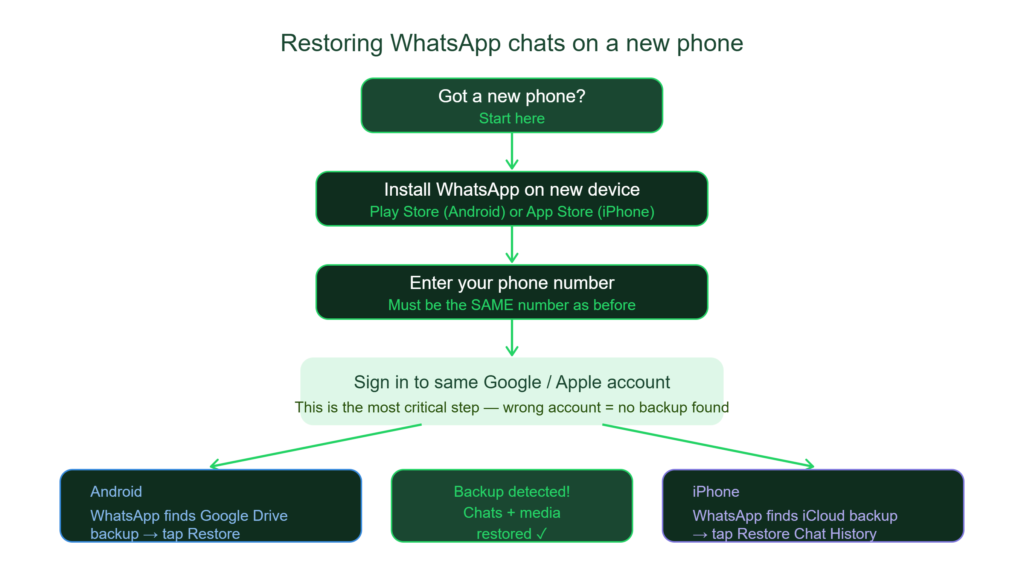
This is the part that matters when something actually goes wrong.
Android Restore
- Install WhatsApp on the new device from the Play Store.
- Open it and enter your phone number — the same number linked to your old account.
- When prompted to choose a Google account, sign into the exact same account used during the backup.
- WhatsApp will detect the backup and show a restore screen. Tap Restore.
- Wait. Larger chat histories with lots of media can take 10–15 minutes.
iPhone Restore
- Install WhatsApp on the new iPhone.
- Enter and verify your phone number.
- Make sure you’re signed into the same Apple ID used when the backup was created.
- WhatsApp will find the iCloud backup automatically and prompt you to restore.
- Tap Restore Chat History.
Critical detail: The combination of phone number and cloud account must match exactly. If you changed either — new number, different Google account — WhatsApp genuinely cannot locate your backup. It’ll look like everything is gone, even if the backup is sitting there untouched.
Finding WhatsApp Backup Files Manually on Android {#manual-backup-files}
If you’re curious (or troubleshooting), you can find your local backup files directly on your Android device:
Open your file manager and navigate to: Internal Storage → WhatsApp → Databases
You’ll see files with names like: msgstore-2026-05-10.1.db.crypt15
These are timestamped encrypted copies of your chat database. WhatsApp keeps several days’ worth automatically. The .crypt15 extension means they’re encrypted — you can’t open them in a text editor or read them directly, which is actually a feature, not a bug. Nobody can pick up your phone and read your private conversations from a stolen backup file.
If you ever need to manually restore from one of these files, rename the one you want to msgstore.db.crypt15 and place it back in that folder before reinstalling WhatsApp. It’s a bit fiddly, but it works.
Can You Recover Deleted WhatsApp Messages? {#recover-deleted-messages}
Honestly? Sometimes. But less often than people hope.
WhatsApp doesn’t secretly keep deleted messages anywhere. When you delete a chat and your backup runs afterward, that deletion gets saved too. The chat is genuinely gone from everywhere.
The window where recovery is possible: if you have a local backup file (in that Databases folder mentioned above) from before you deleted the chat. In that case, you can restore WhatsApp from that older snapshot.
The trade-off: you lose everything that happened between that backup date and now. All new messages, photos, and conversations in other chats from that period disappear too.
Whether that’s worth it depends entirely on how important the deleted conversation was. For most people, the answer is no. But it’s good to know the option exists.
This is also exactly why daily backups matter so much. The more recent your last backup, the less you lose in any recovery scenario.
WhatsApp Account Info: What Data Does WhatsApp Keep? {#account-info}
This one is genuinely underused.
Go to WhatsApp → Settings → Account → Request Account Info.
WhatsApp will compile a report covering your account registration details, the groups you belong to, your privacy settings, and your blocked contacts. It usually takes 1–3 days to prepare.
This isn’t a backup of your messages — it won’t restore anything. But it’s a useful transparency tool if you want to see what WhatsApp actually holds about you, or if you’re planning to close an account and want a record first.
Mistakes People Make That Cost Them Their Chats {#common-mistakes}
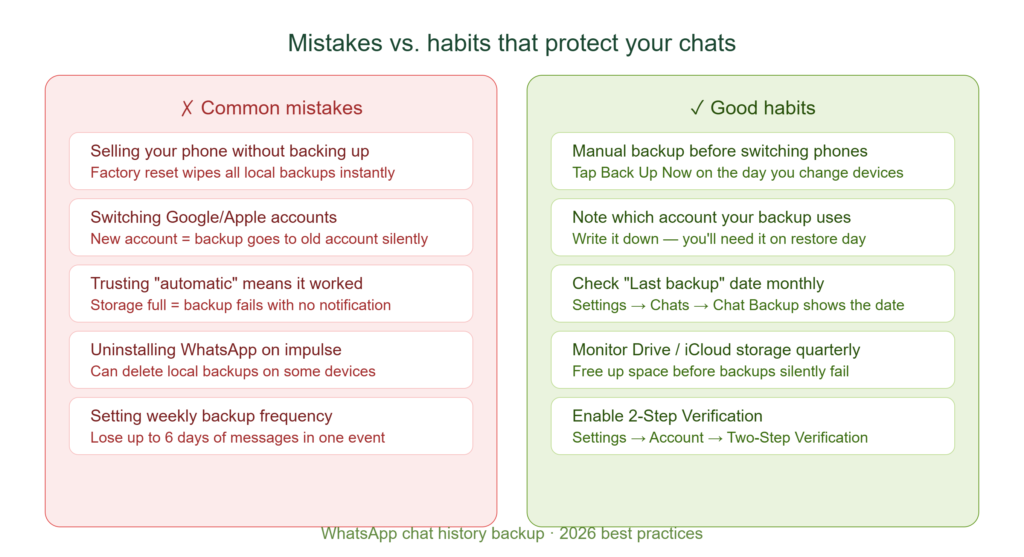
I’ve seen all of these happen — sometimes to people I know personally.
Selling or trading in a phone without backing up first. This is the number one way people lose everything. A factory reset wipes local backups. Always run a manual WhatsApp backup before handing off a device.
Switching Google accounts or Apple IDs without updating the backup. If you change accounts and don’t re-link WhatsApp to the new one, your backups start going to the old account — the one you no longer have access to.
Trusting that “automatic” means “definitely worked.” Automatic backups can fail silently due to storage limits, lost Wi-Fi connection, or account issues. The last backup date in your Chat Backup settings tells you exactly when it actually ran. Check it.
Uninstalling WhatsApp to fix a bug. WhatsApp keeps local backups — but they get deleted when you uninstall and reinstall on some devices. Run a manual backup first, every time.
Forgetting cloud storage is finite. Both Google Drive and iCloud have limits. Once they’re full, your WhatsApp chat history backup silently stops updating. This is incredibly common because storage fills up slowly and nobody notices.
Habits That Will Protect Your Messages Long-Term {#good-habits}
None of these take more than a minute each, but together they basically guarantee you never lose your WhatsApp history:
Set backup frequency to Daily. Not weekly. Daily. The difference matters when something goes wrong on a Thursday.
Run a manual backup before switching phones. Don’t trust the scheduled one. Go into Chat Backup and tap Back Up Now on the day you switch.
Check your backup storage every few months. Look at how much space your WhatsApp backup is taking in Google Drive or iCloud. If you’re near the limit, either buy more storage or clear some space.
Enable 2-Step Verification in WhatsApp. This protects your account from being hijacked even if someone steals your SIM card. Settings → Account → Two-Step Verification. Takes 30 seconds and adds a significant layer of protection.
Note down which Google or Apple account your backup is tied to. Write it somewhere. If you ever restore on a new phone and can’t remember which account you used, you’ll be very glad you did this.
Spot-check the “Last backup” date every once in a while. It’s right there in Chat Backup settings. If it’s been more than a week, something has gone wrong — storage full, account issue, or Wi-Fi wasn’t available during the scheduled time. Fix it before it becomes a problem.
Visit here, To download App:
Final Thoughts
WhatsApp chat history backup is one of those things that feels boring and unnecessary right up until the moment you desperately need it. I’ve been that person standing in a store with a dead phone, hoping I had done the right thing months earlier.
The three minutes it takes to set this up correctly — daily backup to Google Drive or iCloud, manual backup before any big change, and a quick storage check every few months — is genuinely some of the best three minutes you can spend on your phone.
Set it up now. Future you will be relieved you did.
For more information, click here: APKSITE1