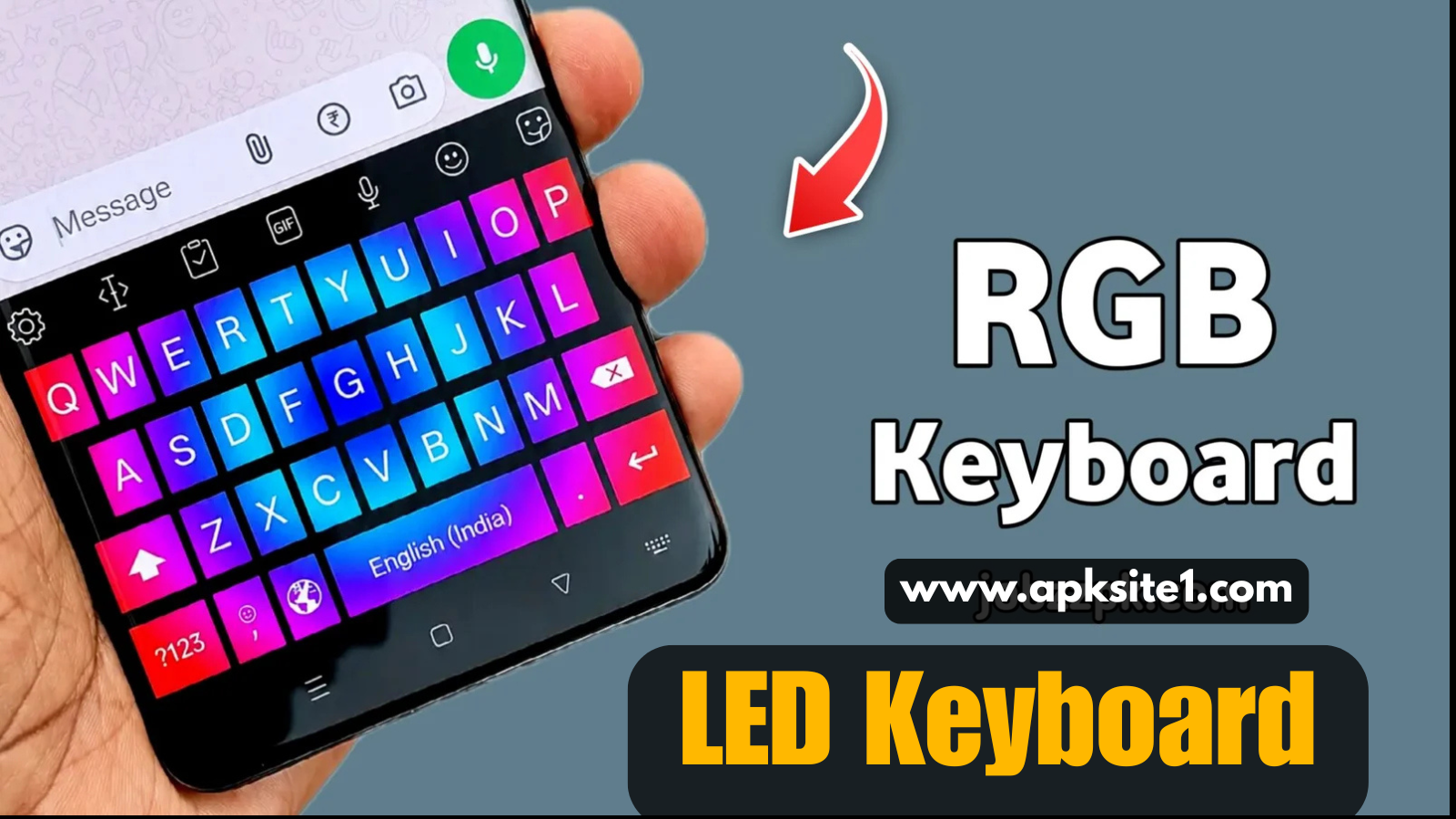
You know that moment when someone glances at your phone screen and actually says “wait, what keyboard is that?” That’s usually the reaction an LED Keyboard gets. It’s a small change — you’re still typing the same texts and the same Instagram captions — but somehow a glowing, colorful RGB keyboard makes the whole phone feel less generic.
If your keyboard still looks exactly like it did the day you unboxed your phone, this is one of the fastest, cheapest (as in free) ways to fix that.
What LED Keyboard Actually Is
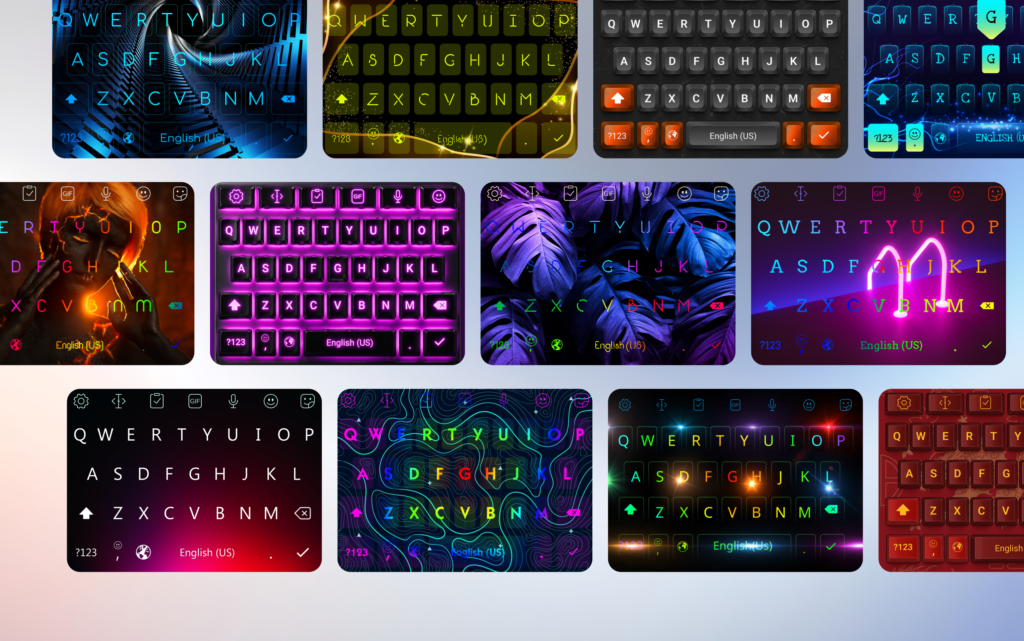
LED Keyboard – Colorful RGB Lighting Keyboard for Android is a keyboard app that replaces your stock Android keyboard with one built around RGB lighting effects, neon and gradient themes, custom fonts, and animated keys. Think of it as the phone equivalent of a gaming laptop’s backlit keys — except it lives inside your typing app instead of your hardware.
It’s not just a skin, either. Underneath the visual layer, it still needs to function as a real keyboard: predictive text, autocorrect, emoji and GIF support, and word suggestions all come along with it. A colorful keyboard that lags or mistypes every third word isn’t a win, so the app has to earn its place by typing well first and looking good second.
Why People Actually Switch to an LED Keyboard
Here’s the honest reason most people install something like this: the default Android keyboard is fine, but it’s boring. It’s the same gray or white bar every single app uses. An LED Keyboard breaks that pattern instantly — every message, comment, or search feels a little more “yours.”
There’s also a practical side. If you’re someone who changes wallpapers or icon packs often, a plain keyboard can suddenly look out of place against a colorful home screen. Matching your keyboard theme to your wallpaper or app icons pulls the whole phone together instead of having one dull rectangle sitting at the bottom of every screen.
Setting It Up: Step by Step
Installing and switching to an RGB keyboard takes a few minutes, but Android’s keyboard settings aren’t always obvious if you haven’t changed your default keyboard before. Here’s the straightforward path:
- Open the Google Play Store and search for “LED Keyboard – Colorful RGB Lighting Keyboard.”
- Tap Install and wait for the download to finish.
- Open the app once it’s installed — don’t skip this step, since it usually walks you through permissions.
- Enable the keyboard in Android’s system settings. On most phones this is under Settings > System > Languages & Input > On-screen keyboard.
- Set it as your default keyboard, replacing Gboard or whatever you were using before.
- Pick a theme from the built-in RGB and color options.
- Test it out in any text field — Messages, WhatsApp, or a notes app work fine — before you commit to it for everyday use.
If the new keyboard doesn’t show up as an option, it usually means step 4 got skipped. Android won’t let a keyboard app take over until you’ve explicitly enabled it in settings — installing the app alone isn’t enough.
Getting the Most Out of Customization
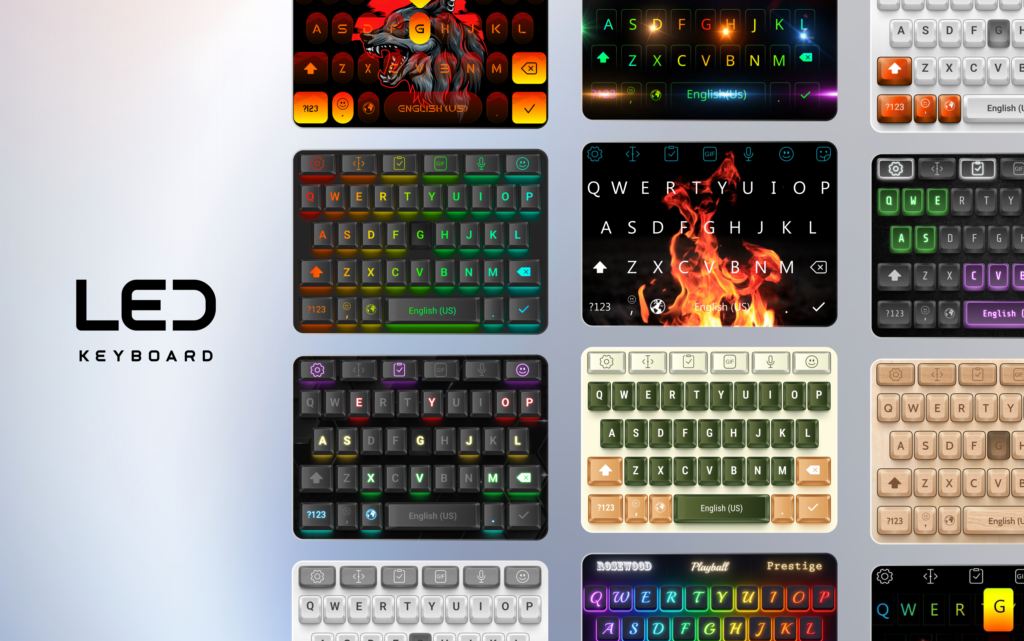
The customization menu is where this app earns its name. You’re not stuck with one glow color or one layout. You can adjust:
- RGB lighting patterns — static glow, pulsing, or color-cycling effects
- Background themes — neon, gradient, dark mode, or minimal styles
- Font styles — for a more distinct look in your typed messages
- Key size and layout — useful if you have a larger phone and want a more comfortable reach
A tip that makes a real difference: don’t just pick the flashiest theme on day one. Try two or three for a full day of normal typing each. Some RGB themes look great in a screenshot but turn out a little busy once you’re actually texting fast. The theme that looks best in the preview screen isn’t always the one you’ll want to stare at for three hours of messaging.
Common Mistakes Worth Avoiding
A few things trip people up when they first switch:
- Not enabling the keyboard in system settings — as mentioned above, this is the most common reason people think the app “isn’t working.”
- Skipping the permissions review — like any keyboard app, it’s worth checking what access it’s requesting and deciding if you’re comfortable with it before you rely on it daily.
- Ignoring app updates — new themes and performance fixes usually roll out through updates, so an outdated version can feel slower or more limited than it should.
- Choosing a theme purely on looks — as above, test it with real typing, not just a glance at the settings screen.
None of these are dealbreakers, but they’re the difference between a smooth setup and a frustrating first ten minutes.
Is It Actually Worth Using Day to Day?
For most people, yes — with a reasonable expectation attached. This isn’t going to make you type faster or fundamentally change how you use your phone. What it does is make a feature you touch hundreds of times a day feel a little more enjoyable and a little more “you.” That’s a small thing, but small things you interact with constantly tend to matter more than they seem to on paper.
If you’re the kind of person who already customizes wallpapers, icon packs, and widgets, an LED Keyboard is a natural next step. If you barely think about how your phone looks, it’s still a low-effort way to try something different — it costs nothing to install and takes seconds to switch back if it’s not for you.
Final Thoughts
Your keyboard is one of the most-used parts of your phone, and it’s also one of the most overlooked when it comes to personalizing your device. An LED Keyboard is a simple, low-risk way to change that — colorful themes, RGB lighting, and custom fonts, without giving up the basics like autocorrect and word prediction.
As with any keyboard app, take a minute to check the permissions and privacy settings before making it your default. Once that’s sorted, the rest is just picking a theme that fits your style and getting back to typing — just with a bit more color this time around.
For more information, visit: APKSITE1