If you’ve ever tried to share files from Android to iPhone and watched absolutely nothing happen, you’re not imagining things — and your phone isn’t broken. My cousin switched from a Galaxy to an iPhone 15 last winter, and for about two weeks straight I got the same text almost every night: “why won’t this video send.” She’d AirDrop something, nothing would happen, and she’d assume the transfer had failed on her end. It hadn’t. She just didn’t know that AirDrop is an Apple-only club, and nobody tells you that until you’re already stuck holding a 4K video you desperately need to get onto your new phone before a deadline.
That’s really the whole problem with mixed households. Someone’s on Android, someone’s on iPhone, and the two ecosystems act like they’ve never heard of each other. I’ve bounced between both platforms for work testing apps over the years, and I’ve tried more ways to share files from Android to iPhone than I’d like to admit — some of them out of genuine desperation at 1am with a full SD card and no laptop nearby. Below is what’s actually worked, not just what sounds good on paper.
Why This Is Still Harder Than It Should Be in 2026
Apple built AirDrop to work beautifully between Apple devices and, frankly, to keep you inside that ecosystem. Google’s Quick Share does the same thing for Android. Neither company has much incentive to make cross-platform sharing effortless, so the burden falls on third-party apps, cloud storage, or old-fashioned cables.
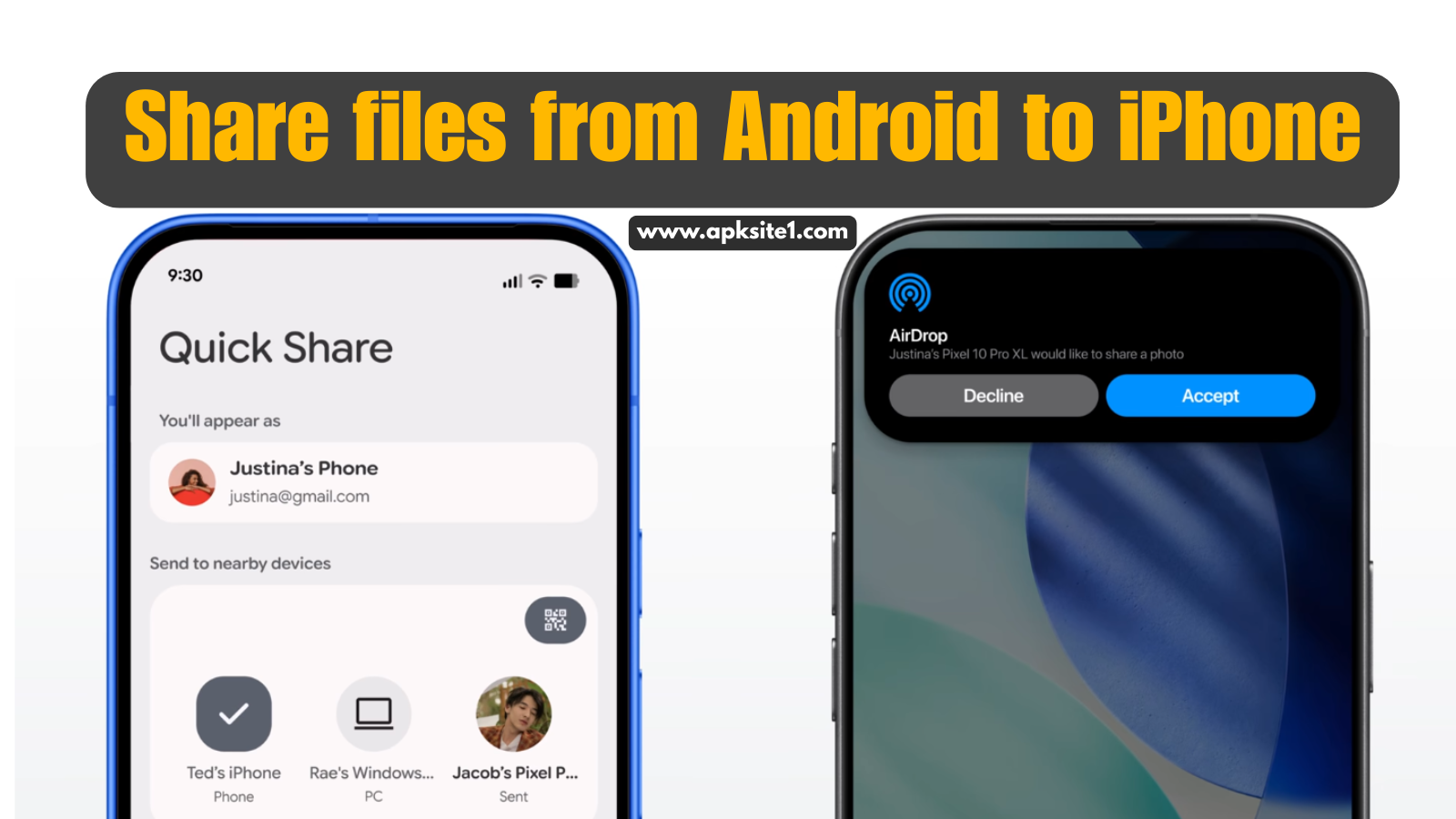
There’s been some movement here — newer Pixel phones paired with recent iOS versions have started showing limited native interoperability between Quick Share and AirDrop in certain regions, letting a file show up in the iPhone’s AirDrop list without a separate app. If you own a very recent Pixel and iPhone, it’s worth checking whether Quick Share shows your iPhone as a nearby option before you install anything extra. For everyone else, and for anything you want to count on working reliably, the methods below are still the ones to lean on.
1. Google Drive (Best for Documents and One-Off Files)
If you already have a Google account — and most Android users do — this is the path of least resistance.
- Open the file on your Android phone, tap Share, and choose Save to Drive.
- On the iPhone, install the Google Drive app, sign into the same account, and the file is sitting right there.
I use this constantly for PDFs, spreadsheets, and screenshots. The catch: it eats into your storage quota, and it’s clunky for anything over a few hundred megabytes, like full-length video.
2. Send Anywhere (Best for Large Files, No Account Needed)
This one saved me during a client handoff when Wi-Fi was flaky and I didn’t want to sign into anything. Send Anywhere generates a six-digit code that expires quickly, so there’s no account creation and no file sitting on a server waiting to be claimed.
- Install Send Anywhere on both devices.
- On the sending phone, pick your files and hit Send — it generates a code.
- On the receiving phone, tap Receive and type in that code.
It handles pretty much any file type and doesn’t compress your photos or videos, which matters if you care about quality. The free tier does cap simultaneous transfers, so batching a huge folder can take a couple of rounds.
3. SHAREit or Xender (Best for Bulk Transfers Between Two Phones)

Both apps work the same basic way: they create a local Wi-Fi Direct connection between two devices so files move without touching your mobile data or a router. I’ve used both over the years and they’re functionally close cousins.
- Open the app on both phones and choose Send on one, Receive on the other.
- Scan the QR code or connect through the generated hotspot.
- Pick your files and send.
Where these apps genuinely shine is switching phones entirely — moving an old Android’s entire camera roll onto a new iPhone in one go. Where they annoy me is the ads and the occasional nag screen pushing a premium upgrade. Read the permission prompts before you tap through them; both apps ask for more access than the transfer strictly needs.
4. Email or Messaging Apps (Best for a Quick, Small File)
Sometimes the low-tech option is genuinely the fastest one. WhatsApp, Telegram, or plain email all work across platforms without a second thought, because they’re not tied to either Apple or Google’s ecosystem.
- WhatsApp lets you attach files up to a couple of gigabytes directly in a chat.
- Gmail caps attachments around 25MB, but anything larger gets auto-converted into a Drive link.
I use this for the one-off document or photo I need someone to have in the next thirty seconds. It’s not built for bulk transfers, but for a single file, nothing beats the speed.
5. A USB-C Cable and a Computer (Best When You Don’t Trust Wi-Fi)
If you have a laptop nearby, this is the most reliable method I know, especially for huge video files where a flaky Wi-Fi connection turns a two-minute job into twenty.
- Plug the Android phone into your computer, open its file manager, and drag the files onto your desktop.
- Unplug, connect the iPhone, and use the Photos app (Windows) or the Finder sidebar (Mac) to copy the files over.
It’s slower to set up than a wireless app, but once the cable’s plugged in, transfer speed is rock solid, and nothing depends on both phones sitting on the same network.
6. Snapdrop (Best for a No-Install Browser Transfer)
This is my go-to when I’m on someone else’s phone and don’t want to install anything. Snapdrop is a free website that uses your local network to beam files between browser tabs, no app, no account.
- Open snapdrop.net on both devices’ browsers, connected to the same Wi-Fi.
- Each device shows up as a little icon; tap the other device’s icon and select your file.
It works surprisingly well for photos and documents. Video files can be hit or miss depending on browser support, so I wouldn’t rely on it for anything mission-critical.
7. Move to iOS (Best for a Full Phone Switch, Not Ongoing Sharing)
This one’s specifically for the moment you’re setting up a brand-new iPhone and want to pull your entire Android history across in one shot — contacts, messages, photos, and more.
- During the iPhone’s initial setup screen, select Move Data from Android.
- Install Move to iOS on your Android phone and follow the prompts; connecting both phones with a USB-C cable speeds things up considerably.
The big limitation is timing — it only works during that initial setup screen. Once your iPhone is up and running, you’re back to the other methods on this list for anything new.
Mistakes I See People Make Constantly
Assuming AirDrop will magically work. It only talks to other Apple devices. If your iPhone isn’t showing up as an option, it’s not a bug, it’s just not built for this.
Skipping the file size check before choosing a method. Email caps out fast, and a lot of people waste ten minutes fighting Gmail before switching to something built for bigger files.
Not checking storage before a bulk transfer. I’ve had transfers fail halfway through simply because the receiving phone ran out of space, which is more frustrating than any app glitch.
Granting every permission a transfer app asks for without reading it. Location access has nothing to do with sending a photo. If an app asks for something unrelated to the transfer itself, it’s worth a second look before accepting.
Final Thoughts
None of these methods is universally “the best” — it really depends on what you’re moving and how fast you need it there. For a quick document, Drive or email wins. For dumping an entire camera roll onto a new phone, SHAREit or Xender does the heavy lifting. For the one time a year you need something huge to move without a hiccup, the cable-and-computer method still hasn’t let me down.
The mixed Android-iPhone household isn’t going away, and honestly, once you’ve got one of these methods set up and muscle-memorized, it stops being a problem you think about at all.
For more information, visit: APKSITE1