

So picture this: my cousin came over last weekend, pulled out his new phone, and asked for the WiFi password. I said “yeah sure, it’s…” and then just stood there like an idiot. I’d been connected to this network for three years. Never once had to type the password manually — my phone just reconnected every time. I genuinely had zero idea what it was.
Took me about four minutes of poking around my phone to find it. Not because it was hard. Just because I’d never needed to look for it before and didn’t know where to start.
If you’re in a similar spot right now — already connected, just need the actual password — here’s every method that works in 2026, sorted by device. No apps to download, no technical stuff, no rooting required for most of these.
Android: The Easiest Way (Takes About 30 Seconds)
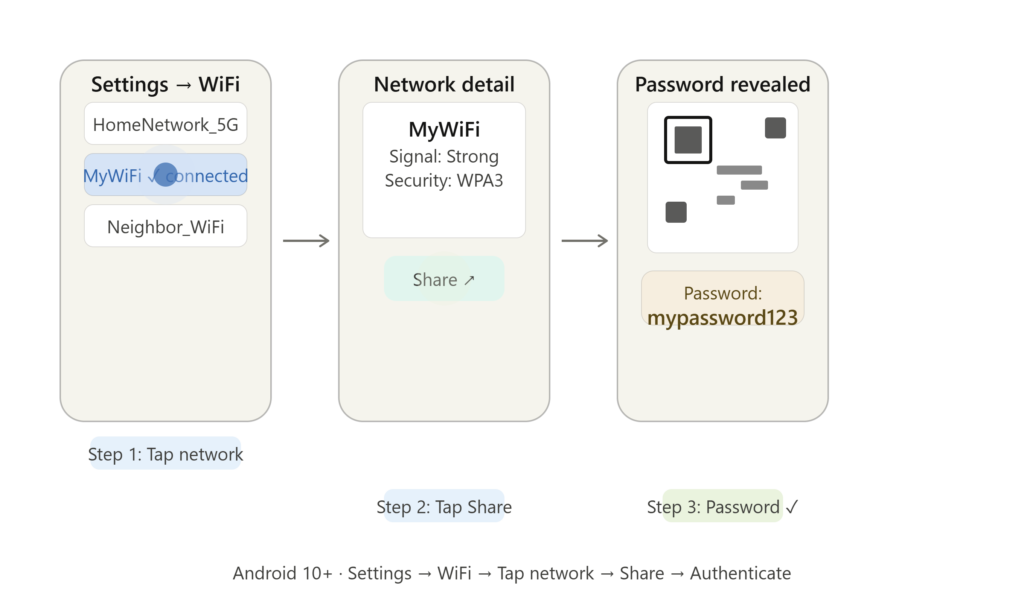
Google quietly made this super simple starting with Android 10. If your phone is running anything from Android 10 onwards — which most phones are by now — here’s all you do:
- Open Settings and go to WiFi (on Samsung it’s under Connections → WiFi)
- Tap on the network you’re currently connected to
- Look for a Share button or a small QR code icon
- Tap it — your phone will ask for your fingerprint, PIN, or face unlock
- A QR code pops up — and right underneath it, the actual password written in plain text
That’s it. The password is just sitting there. I was honestly surprised how straightforward it was when I found it the first time.
Samsung users — your layout is slightly different. Go to Settings → Connections → WiFi, then tap the small gear icon next to your connected network. You’ll see a QR Code option. Tap that and the password shows below the code.
What About Older Android Phones?
On Android 9 and below, there’s no built-in way to see the password without root access. The password is stored in a system file (/data/misc/wifi/wpa_supplicant.conf) that’s locked behind root permissions. If your phone isn’t rooted, skip this and jump to the router section — that method works on any device.
iPhone: Dead Simple on iOS 16 and Above
Apple added this feature in iOS 16 and it works exactly as you’d want it to.
- Open Settings → WiFi
- Tap the small ⓘ icon next to the network you’re on
- You’ll see a Password field showing dots
- Tap on it — Face ID or Touch ID kicks in
- The real password appears
Took me about ten seconds the first time I tried it. The only catch is your iPhone needs to be on iOS 16 or newer. If you’re on something older, check for a software update first. If updating isn’t an option, the router method below will still work for you.
Windows Laptop: Two Ways, Pick Whichever Feels Easier
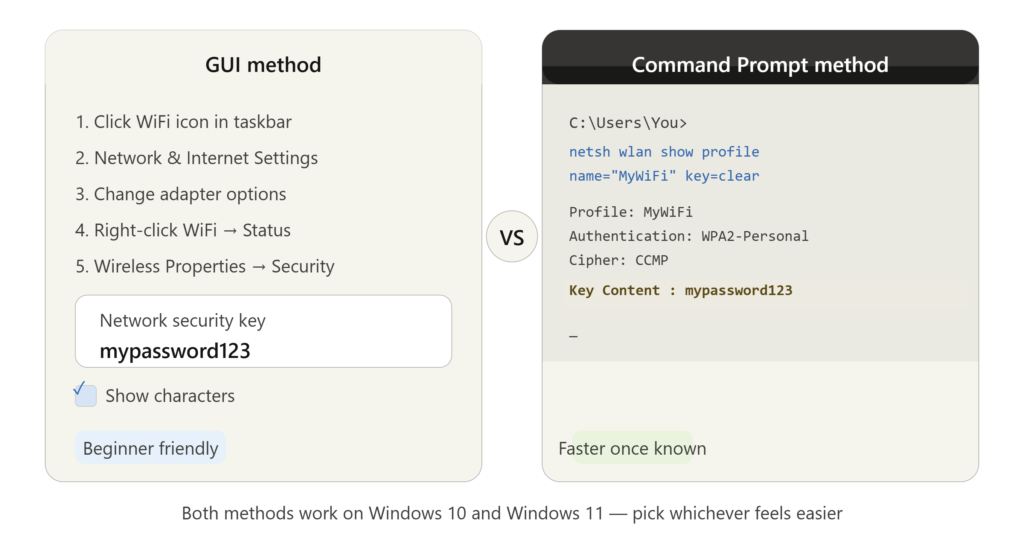
If your laptop is connected to the same WiFi, Windows has stored that password and you can pull it out pretty easily.
The Clicks Route
- Click the WiFi icon in the bottom-right taskbar
- Go to Network & Internet Settings
- Click Change adapter options
- Right-click your WiFi connection → Status → Wireless Properties
- Click the Security tab
- Check the box that says Show characters
Password shows up instantly.
The Command Prompt Route (Faster Once You Know It)
Open Command Prompt and type:
netsh wlan show profile name="YourNetworkName" key=clearReplace YourNetworkName with your actual WiFi name (SSID). Scroll down in the output and look for Key Content — that’s your password right there.
This is honestly the one I use most now. Once you do it once, it becomes second nature.
Check the Router Directly (Works for Any Device)
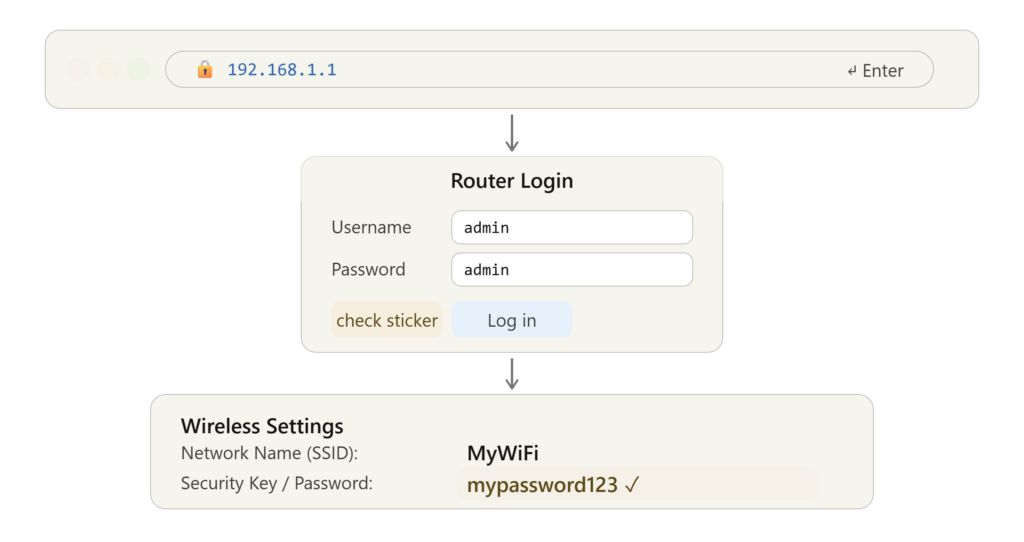
This is my favorite fallback because it doesn’t depend on which device you’re on or which OS version you have. As long as you’re connected to the network, you can log into your router and see the password.
- Open any web browser
- Type
192.168.1.1in the address bar and hit Enter (if nothing loads, try192.168.0.1) - A login page appears — default credentials are usually
admin / adminoradmin / password - If you’re not sure, flip your router over — there’s almost always a sticker with the login info
- Once inside, look for Wireless Settings or WiFi Setup
- Your WiFi password is right there under the Security section
For PTCL, Zong, Jazz, or any ISP-provided router — the default login details are always on that sticker on the bottom or back of the device. Check there before anything else.
One thing to watch out for: if the router’s admin password was changed from the default and nobody remembers it, this method won’t work. In that case, use the phone or laptop methods instead.
Google Account Sync (Android Only)
This one’s more of a “future you” trick, but worth knowing. If your Android phone is backed up to your Google account and WiFi backup is enabled, your saved passwords sync across devices.
Go to Settings → System → Backup and check if WiFi passwords are listed under backup data. When you set up a new Android phone with the same Google account, those passwords restore automatically without you having to re-enter anything. Handy for the next time you switch phones.
Sharing WiFi Without Giving Out the Password
Sometimes you don’t actually want to share the raw password — you just want someone to connect quickly. Both Android and iPhone handle this elegantly now.
On Android, go to WiFi settings and hit the Share option for your network. It generates a QR code. The other person just scans it with their camera and connects — no typing required.
On iPhone, the slick way is to just bring both phones close to each other. If both are on iOS, a small prompt pops up on the connected phone asking if you want to share the password. Tap Send Password and the other phone connects automatically. It’s one of those features that feels like magic the first time you see it work.
What Happens If Nothing Works
If you’ve tried everything and still can’t find the password, the last resort is a factory reset on the router. There’s usually a small recessed button on the back — hold it down for about 10 seconds with a paperclip or SIM ejector tool. The router resets to factory settings and the default password goes back to whatever’s printed on that sticker.
Fair warning: you’ll need to reconfigure any custom settings after this — things like port forwarding, DNS settings, or any custom WiFi names you’d set up. If your setup is simple (most home setups are), it’s not a big deal.
The Mistakes I See People Make
Trying third-party apps first. There are apps out there claiming to “reveal” saved WiFi passwords. Most of them are either useless, require root, or are straight-up sketchy. The built-in methods above work better and don’t require handing your data to some random app.
Forgetting to check the router sticker. If you’ve had the same router for years, the original default password might still work — and it’s printed right on the device. So obvious, yet easy to overlook.
Not saving the password anywhere afterward. This is the one I’m guilty of myself. Found the password, told my cousin, he connected — and neither of us wrote it down anywhere. Two weeks later his phone dropped the connection and we went through the whole thing again.
Keep the Password Somewhere Useful
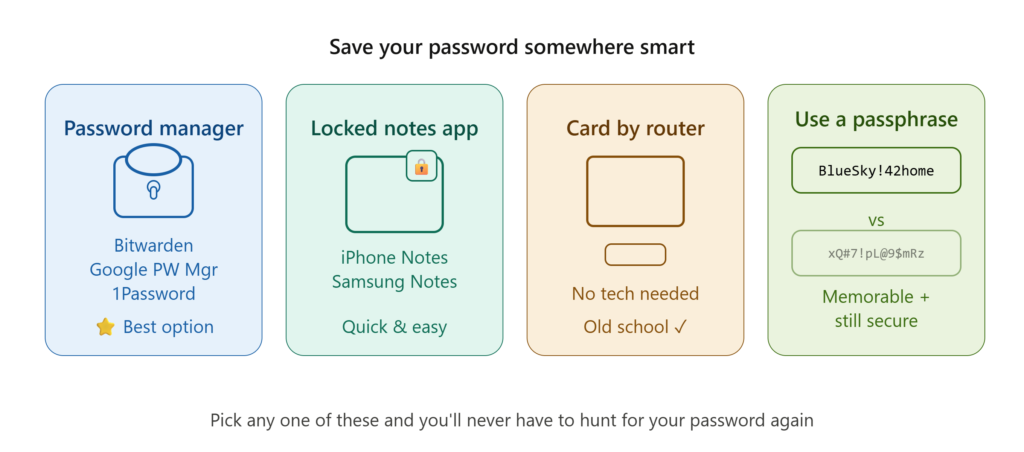
Once you’ve found it, put it somewhere you’ll actually be able to find it again:
- A locked note on your phone works perfectly fine
- A password manager like Bitwarden or Google Password Manager is even better
- Some people just write it on a small card and stick it under the router — surprisingly effective
- Or just change the router password to something genuinely memorable — a short phrase with a number beats a random string you’ll never remember
Also worth doing: if you’ve shared your WiFi password with a lot of people over the years, consider changing it periodically and enabling WPA3 encryption if your router supports it. It’s the strongest security standard available right now and most newer routers have it. Just something to think about once you’ve sorted out the password situation.
Found the password? Good. Now save it somewhere smarter than your memory.




I want to connect on wifi or Hotspot