
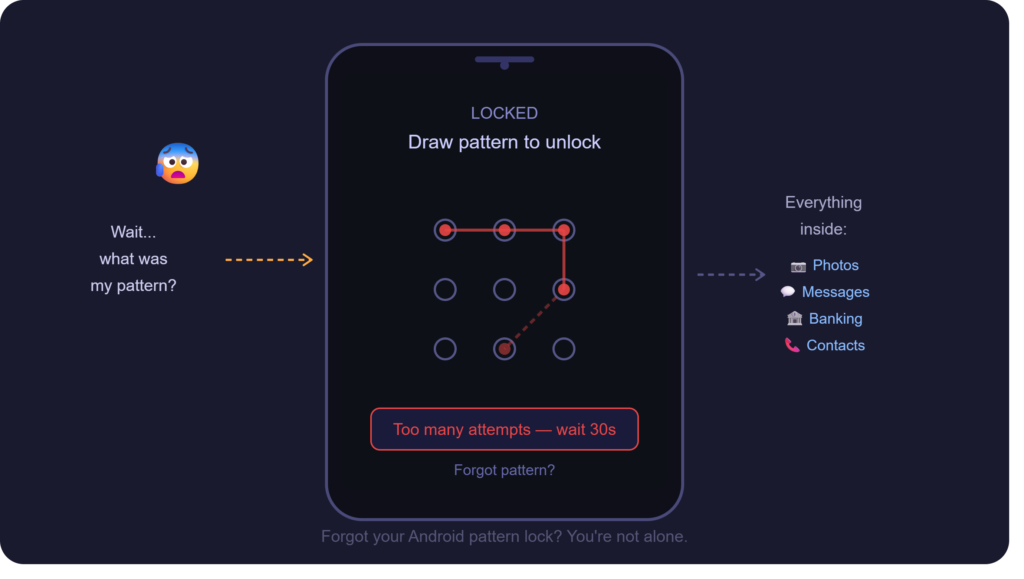
My cousin called me in a panic last Eid. He’d lent his phone to his younger brother for a few minutes, the kid tried to “help” by setting a pattern lock, and nobody remembered what the pattern was. Three days of photos, his bank app, everything — locked behind nine dots and a squiggle nobody could replicate.
I’ve been through this myself too. Set a pattern when I was half asleep, woke up the next morning completely clueless. Tried every shape I could think of. Nothing. That little “30-second cooldown” message felt like a slap each time.
If you’re in that situation right now — phone locked, data inside, no idea what to do next — this guide is exactly what you need. I’ll walk you through every method that actually works to break pattern lock on Android in 2026, starting from the easiest and moving to the nuclear option.
Method 1: Use Your Google Account to Break Pattern Lock on Android
This is always the first thing I try, and honestly it works about 70% of the time. If your Android phone was signed into a Google account before it got locked, you’re already most of the way there.
After five or six wrong pattern attempts, Android will show a lockout screen. Look at the bottom — there should be a link that says “Forgot Pattern” or “Forgot Password.”
Here’s what to do:
- Draw the wrong pattern until the lockout appears (usually after 5 attempts)
- Tap “Forgot Pattern” at the bottom of the screen
- Sign in with the Google account email and password linked to the phone
- Follow the prompts to reset or remove the pattern lock
- Set a new lock screen — or skip it entirely for now
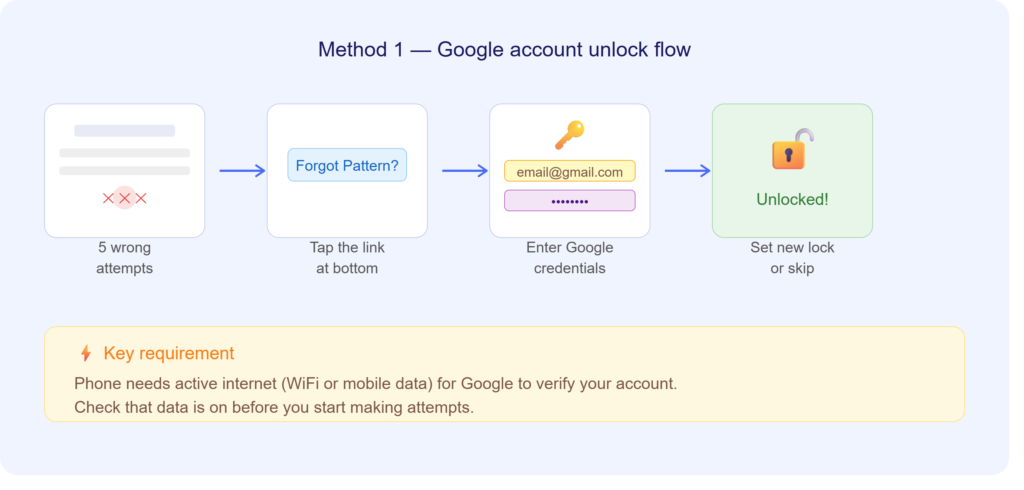
One thing that trips people up: your phone needs an active internet connection for this to work. If WiFi is off and mobile data isn’t on, this screen won’t connect to Google’s servers. If you’re near a router, check if the phone auto-connects before trying.
Method 2: Samsung Find My Mobile (Samsung Phones Only)
Samsung users have a secret weapon that most people completely forget exists. If the locked phone is a Samsung and was signed into a Samsung account, you can break the pattern lock on Android remotely without even touching the device.
Go to findmymobile.samsung.com on your laptop or another phone.
- Log in with the Samsung account that was set up on the locked device
- Select the device from the list on the left
- Click “Unlock” from the side menu
- Confirm the action
That’s it. The phone unlocks itself within seconds. I used this for a family member’s Galaxy A-series phone last year and genuinely couldn’t believe how smooth it was. No cables, no apps, no stress.
The only catch: the Samsung account must have been signed in before the phone got locked, and the phone needs to be powered on with internet access.
Method 3: Android Debug Bridge (ADB) — For Developers
If you had Developer Options turned on before your phone locked, ADB is one of the cleanest ways to break Android pattern lock without wiping anything.
You’ll need a PC and a USB cable.
- Download ADB tools from the official Android developer site
- Connect the locked phone via USB
- Open Command Prompt (Windows) or Terminal (Mac/Linux)
- Type this command:
adb shell rm /data/system/gesture.key - Restart the phone
- The pattern lock will be gone — phone boots straight to home screen
I want to be upfront about the limitation here: USB Debugging must have been enabled before the lockout. If you never turned it on (most regular users don’t), this command won’t execute. Skip to the next method if that’s the case.
But if you’re someone who tinkers with phones and had debugging on — this is genuinely the cleanest fix.
Method 4: Third-Party Unlock Tools
This is where things get interesting for people who can’t use the methods above but really don’t want to lose their data. Several legitimate software tools are designed specifically to break pattern lock on Android without a factory reset.
The ones I’ve actually seen work:
- Dr.Fone — Screen Unlock — supports Samsung, Xiaomi, Oppo, Vivo, and more. The UI is straightforward even if you’ve never done anything like this before.
- iMyFone LockWiper — solid alternative, also handles most popular Android brands
- Tenorshare 4uKey for Android — slightly simpler interface, good for first-timers
These tools work by connecting your phone via USB and bypassing the lock screen at the system level. Most of them take under 10 minutes. They’re paid, but they do offer trials — and honestly if your phone has photos or banking data you can’t afford to lose, the cost is worth it.
Only download these from their official websites. There are fake versions floating around that are either bloatware or worse.
Method 5: Factory Reset via Recovery Mode
I call this the “guaranteed but painful” method. It will always break pattern lock on Android — but it also wipes everything on the phone. Use this only if your data isn’t critical, or if you’ve already backed everything up.
For most Android phones:
- Power the phone off completely
- Hold Volume Down + Power together for about 10 seconds
- Use volume buttons to navigate to “Wipe Data / Factory Reset”
- Press the Power button to confirm
- Select “Yes” on the next screen
- Let it finish — phone restarts like new
Samsung-specific: Hold Volume Up + Bixby + Power simultaneously. On newer Samsung models without a Bixby button, it’s Volume Up + Power.
Oppo / Vivo / Realme: Volume Down + Power. The recovery menus look slightly different across ColorOS and FunTouch OS, but the wipe option is always in there.
One thing I always tell people: if your Google account was signed in before the lockout, your contacts, calendar, and even some app data may automatically restore after you sign back in during setup. It’s not a complete save, but it helps.
Method 6: Contact Your Carrier or Manufacturer
People almost never think of this, but it’s worth a call — especially if the phone is still under warranty. Samsung, Xiaomi, and Oppo all have official support in Pakistan and across South Asia. If you can prove ownership (purchase receipt, IMEI number, original box), they can sometimes unlock the device on your behalf.
It takes longer than the other methods, but it’s free and your data stays safe.
Call the customer support line for your brand and explain the situation. Worst case they say no. Best case you walk out of a service center with your phone unlocked and your data intact.
Common Mistakes People Make When Locked Out
After helping friends and family through this more times than I can count, I’ve noticed a few things people do wrong:
Trying too many patterns too fast — Android progressively increases the lockout time after failed attempts. Slow down, think it through.
Not having internet on when trying the Google method — the most common reason it “doesn’t work.” WiFi needs to be connected.
Downloading random APKs promising to unlock the phone — these are almost always fake and often malicious. Stick to the methods above.
Panicking and immediately doing a factory reset — always try Google account and Samsung Find My Mobile first. A reset should be the last move.
How to Make Sure This Never Happens Again
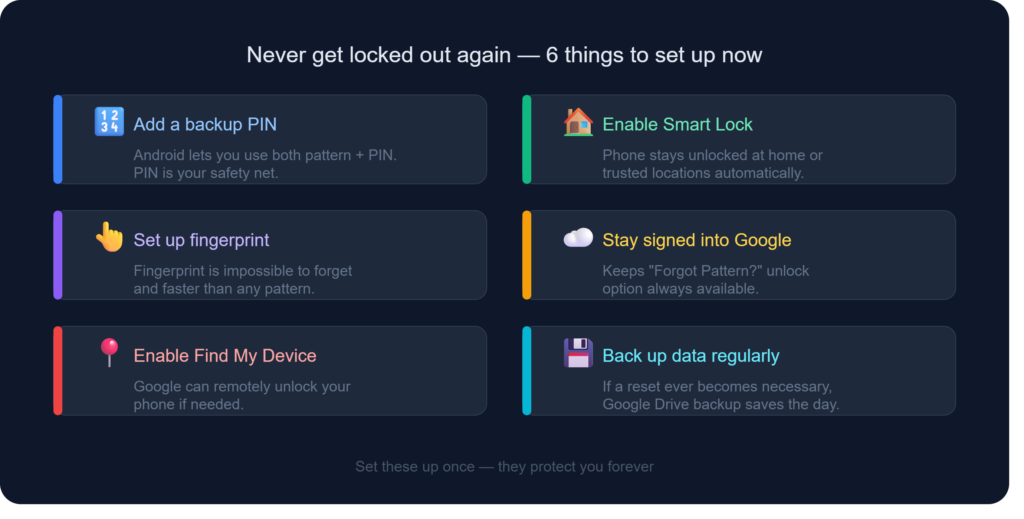
Once you’re back in, spend five minutes on this:
- Add a backup PIN — Android lets you use both a pattern and a PIN
- Turn on Smart Lock — phone stays unlocked at home or trusted places
- Set up fingerprint as backup — impossible to forget
- Keep your Google account signed in so remote unlock is always available
- Screenshot or note your pattern somewhere secure — sounds obvious, but it works
Which Method Should You Try First?
Start with Google account unlock — it’s the quickest and safest. Samsung phone? Try Find My Mobile next. Had developer options on? ADB will handle it cleanly. Don’t want to lose data? Third-party tools are your best bet. Nothing else working? Recovery mode reset will always get you in.
Breaking a pattern lock on Android isn’t as scary as it feels in the moment. The phone isn’t permanently locked — you just need the right key. Pick the method that fits your situation, follow the steps, and you’ll be back inside within minutes.
If this guide helped you out, you might also want to check out our article on setting up Google’s Find My Device — it can save you a lot of trouble the next time something like this happens.




Great content! Keep up the good work!
Thank You😍