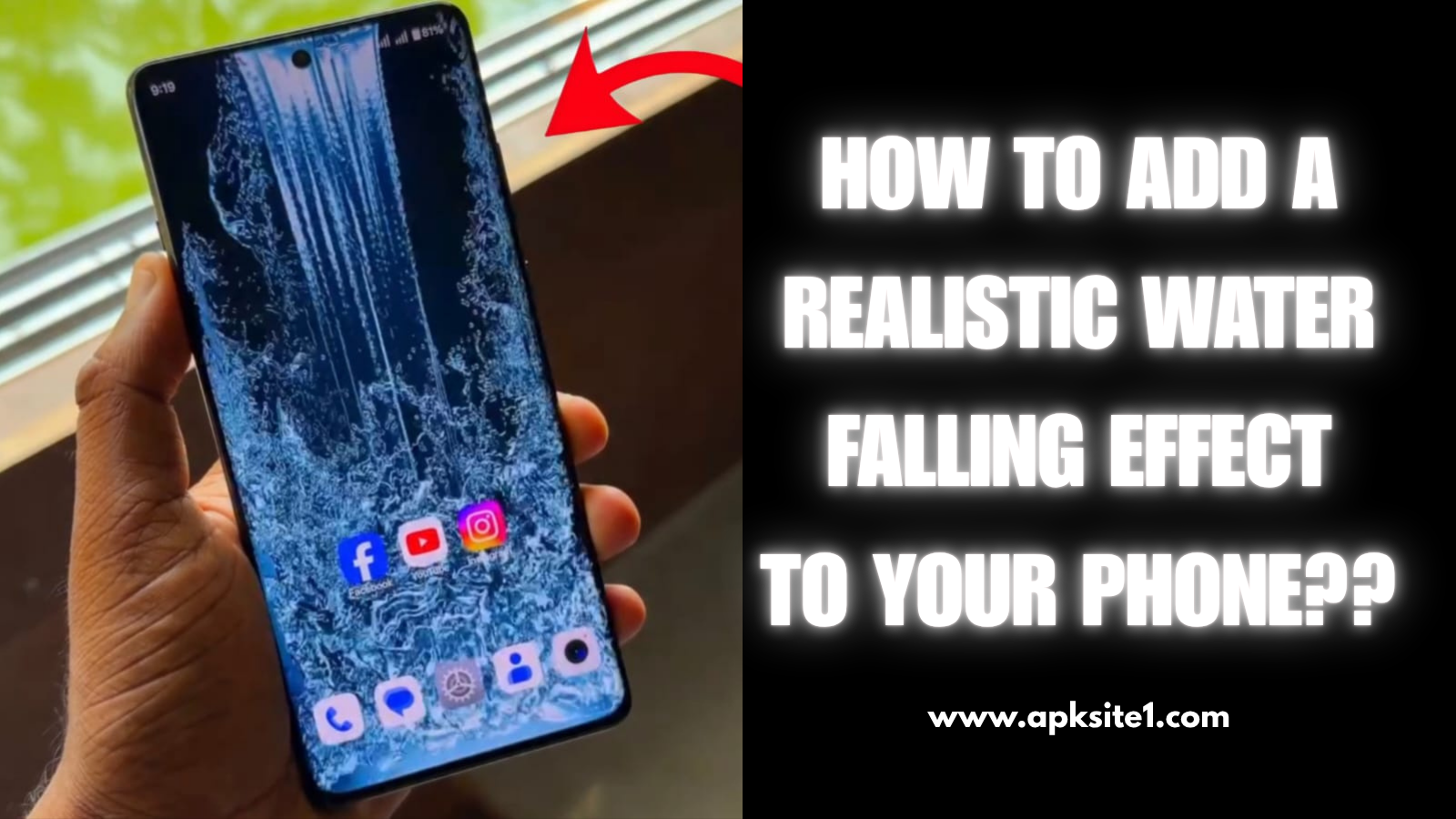
I first saw a water falling effect on a phone at a mobile repair shop, of all places. The guy behind the counter had this waterfall running down his lock screen, and every time he tapped it, ripples spread out like he’d actually dropped a stone in a pond. I stood there for a solid two minutes just tapping his screen like an idiot before I asked him what it was.
Turned out it wasn’t some hidden Samsung feature or a $40 premium app. It was a free live wallpaper he’d found after trying about six bad ones first. I went home, downloaded three different apps, uninstalled two of them within an hour, and finally landed on a setup that’s been running on my phone for months without draining my battery. Here’s the actual process, mistakes included.
What a Water Falling Effect Actually Is
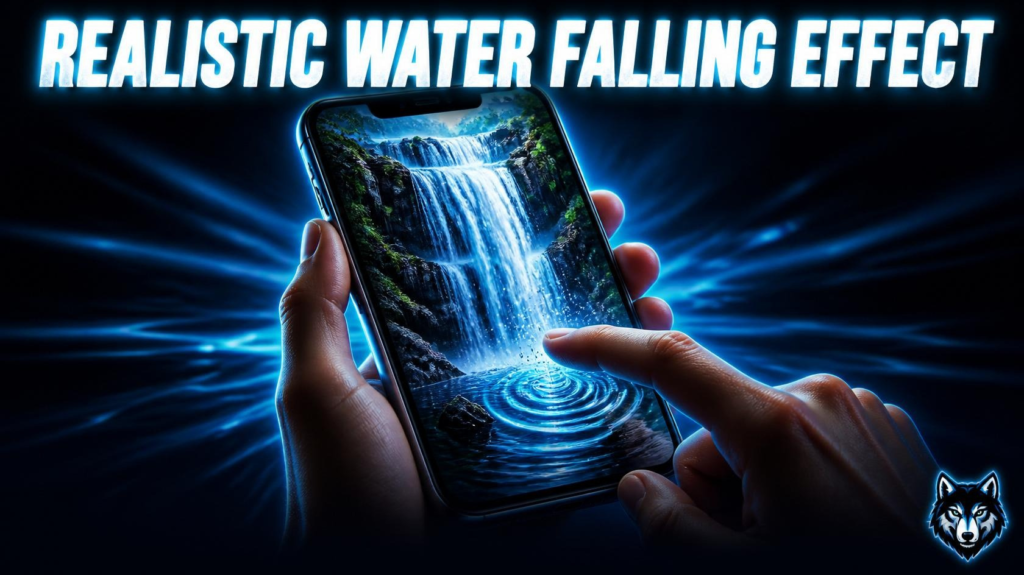
Before you download anything, it helps to know what you’re looking for. A water falling effect is a live wallpaper — meaning it’s animated instead of a static image — that shows moving water, usually a waterfall, a rippling pond, or falling rain, reacting to your touch or your phone’s motion sensor.
It’s not a video playing in a loop (though some cheaper apps fake it that way, and you can usually tell because the loop point is obvious after 10-15 seconds). The good ones use particle rendering, so the water actually behaves differently each time you touch it.
My First Three Attempts (And Why They Failed)
My first pick was an app with a nice thumbnail but barely 10,000 downloads. It looked fine in the preview, but once I set it as my actual wallpaper, the icons on my home screen were nearly unreadable against the moving background. Lesson one: preview screens lie. Always check it live on your home screen with your actual icons before deciding you like it.
My second attempt drained about 12% of my battery in under two hours just sitting idle. That one had a “4K ultra HD” tag, which sounds great until you remember your phone’s battery doesn’t care about marketing.
Third try was closer, but it kept crashing every time I switched apps and came back. Turned out it hadn’t been updated in over a year — a red flag I should’ve caught before installing.
The Setup That Actually Worked
Step 1: Check your Android version. Live wallpapers need Android 8.0 or higher. If you’re not sure, go to Settings > About Phone > Android Version.
Step 2: Free up a bit of space. You want at least 150–200MB free, more than the apps technically require, because the water effect textures and previews can add up if you try a few apps like I did.
Step 3: Go to the Play Store and search smart. Don’t just search “water falling effect.” Try:
- Waterfall live wallpaper
- Water ripple live wallpaper
- Rain live wallpaper HD
Sort by “Top rated” if the option shows up, and actually read the last 10 reviews, not just the star rating. That’s where crash reports and battery complaints show up first.
Step 4: Test before committing. Almost every wallpaper app lets you preview on your actual screen before applying. Use it. Look specifically at how your icons and widgets read over the animation.
Step 5: Apply and choose where. Once you’re happy, tap Set Wallpaper, then pick Home Screen, Lock Screen, or both. I run mine on the lock screen only — it’s the effect I actually see most, and it saves a bit of battery versus having it live behind my apps all day.
Step 6: Tune the settings. This is the step most people skip. Go into the app’s settings and lower the frame rate slightly, turn off any built-in sound effects (they drain battery for no real benefit), and reduce particle density if your phone is a couple of years old.
Apps Worth Actually Trying
After going through the trial and error above, these are the ones that held up for me over weeks, not just the first hour:
- Water Ripple Live Wallpaper — solid touch response, doesn’t overheat the phone
- Rain Live Wallpaper HD — good for a calmer, less “in your face” effect
- Waterfall Live Wallpaper — best pick if you specifically want the falling-water look rather than ripples
I’d still tell you to check current reviews before installing anything, because app quality on these platforms shifts as developers update or abandon them.
Will This Slow Down Your Phone?
On anything made in the last four or five years, honestly, no — not in any way you’d notice day to day. Where I’ve seen real slowdown is on older budget phones with 3GB of RAM or less. If that’s you, drop the resolution setting to HD instead of 4K and disable touch ripple effects; the visual difference is small, but the performance difference is not.
Common Mistakes People Make
Picking the flashiest thumbnail instead of checking reviews. The preview image and the actual in-app experience are often different things.
Ignoring the “last updated” date. Apps that haven’t been touched in over a year are far more likely to crash on newer Android versions.
Turning everything up to max on the first try. Full particle density, full frame rate, and sound all running at once is the fastest way to convince yourself live wallpapers “kill your battery,” when really it’s just an unoptimized setup.
Not testing on the lock screen specifically. A lot of people set it as a home screen wallpaper, get annoyed by cluttered icons, and give up — when moving it to just the lock screen solves the whole problem.
Final Thoughts
The water falling effect is one of those small changes that makes a phone feel noticeably more “yours” without spending a cent or touching a single system setting. It took me three failed attempts to land on a setup I actually kept, so if your first pick disappoints you, that’s normal — it’s part of finding the one that fits your specific phone and habits, not a sign the whole idea is overhyped.
For more information, visit: APKSITE1