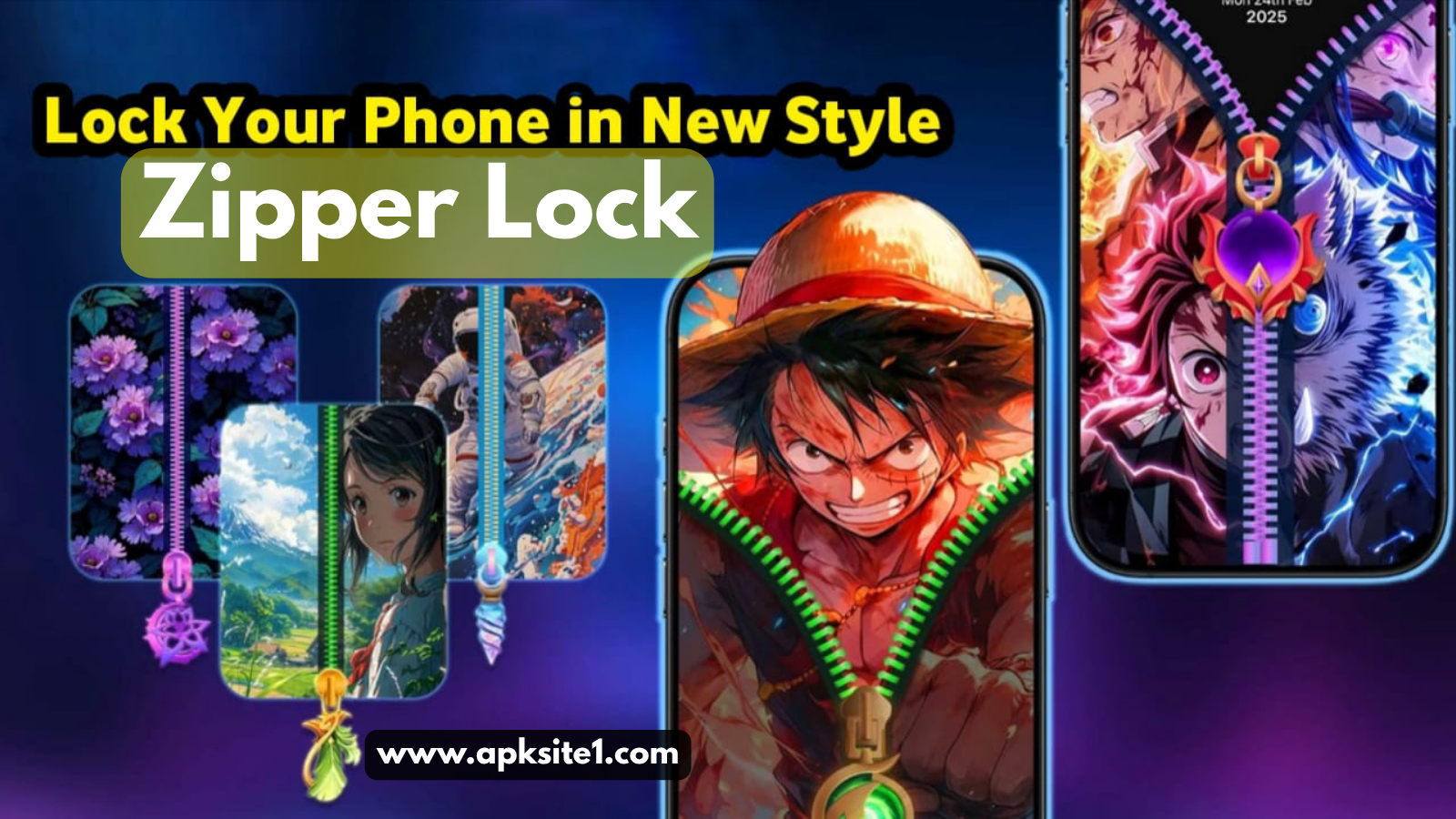
I dropped my phone face-down on a coffee shop table last spring, and the guy sitting across from me laughed before I even picked it up. Not because it cracked. Because my lock screen was the same boring blue PIN pad I’d had since 2021, and he’d just watched his own phone light up with a neon fingerprint animation two minutes earlier.
That small, dumb moment is honestly what got me down the rabbit hole of learning how to lock Android phone in style instead of just… locking it. Turns out there’s a whole world of customization most people never touch because the default settings menu makes it look boring and technical. It isn’t.
I spent about three weekends testing apps, breaking my phone’s animations twice, and annoying my partner by making her unlock my phone “just to see the effect.” Here’s everything I actually learned, minus the fluff.
Why I Even Bothered With This
I used to think a lock screen was just a lock screen. Function over form. Then I noticed something: I unlock my phone somewhere between 80 and 150 times a day, according to Android’s own Digital Wellbeing report. That’s not a small design detail — that’s the single most-viewed screen on the entire device, more than any app I own.
Once I looked at it that way, spending 20 minutes making it feel like mine stopped seeming vain and started seeming obvious.
What I Tried First (And Why It Flopped)
My first move was downloading three lock screen apps at once, because I’m impatient. Bad idea. Two of them fought over accessibility permissions, my phone started double-vibrating on every unlock, and one app quietly disabled my fingerprint sensor for about six hours until I found the setting buried in its menu.
Lesson learned the hard way: install one app, test it for a full day, then decide if you want to layer anything else on top. Don’t stack lock screen apps. Your phone will get confused, and so will you.
The Apps That Actually Held Up
After the false start, here’s what stuck around on my phone.
Solo Locker — this one nails the “make it feel expensive” look without draining battery. I set mine to a slow-motion parallax mountain scene, and the fingerprint ripple effect genuinely looks like something out of a flagship phone ad. Setup took under five minutes.
Screen Master — better if you want function alongside style. It shows weather, your next calendar event, and unread notifications right on the lock screen, styled to match whatever theme you pick. I use this one on my work phone because it saves me from unlocking just to check the time of my next meeting.
Native Always-On Display — don’t sleep on what’s already built into most Android phones (Samsung, Pixel, and OnePlus all have their own version). I turned mine on, picked a custom clock style, and it does 70% of what the paid apps do for free. If you’ve got an AMOLED screen, this barely touches your battery either.
Step-By-Step: How I Set Mine Up
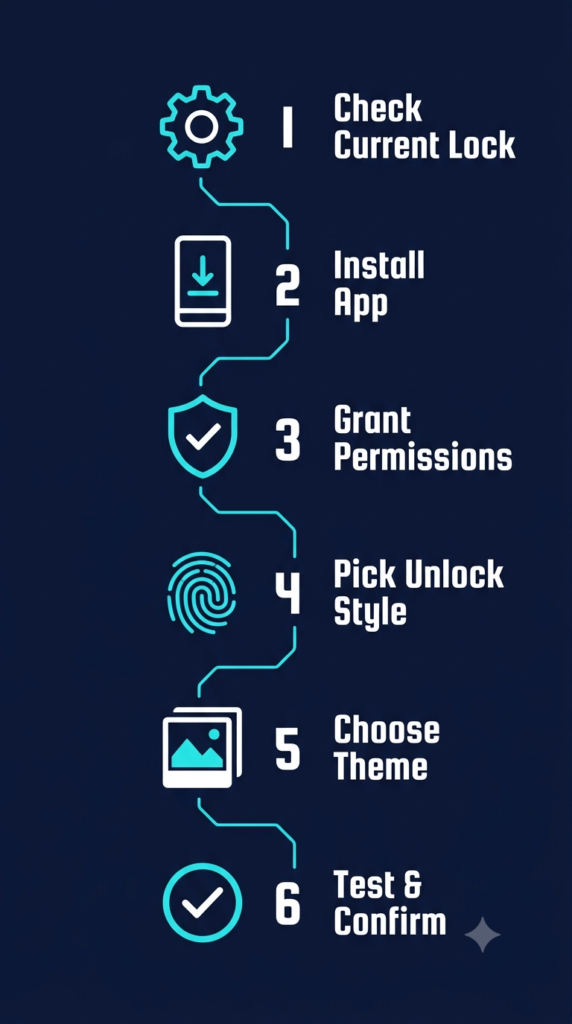
If you want to copy exactly what I did, here’s the order that worked without breaking anything:
- Go to Settings → Security → Screen Lock and confirm your current PIN or pattern still works — you’ll need it as backup no matter what app you install.
- Download one lock screen app from the Play Store (not a random APK site — I’ll explain why below).
- Open it, grant only the permissions it actually needs for its core feature (skip anything asking for contacts or SMS access unless the app clearly needs that).
- Pick your unlock style — pattern, fingerprint animation, or face-based — and preview it before saving.
- Choose a wallpaper or theme that matches your unlock animation, not a random photo that clashes with it.
- Test it 10–15 times over the next hour. If it lags or misfires, that’s your sign to uninstall before you get attached to it.
A Mistake I Wish Someone Had Warned Me About
I installed a lock screen app from a link someone shared in a Facebook group, thinking I was saving time by skipping the Play Store search. It worked fine for two days, then started showing me full-screen ads every single time I unlocked my phone — sometimes before the actual unlock screen even loaded.
Uninstalling it took longer than installing it did, because it had buried a service that restarted itself. Stick to the Play Store. It’s not about being paranoid — it’s just not worth the cleanup.
Built-In Smart Lock Is Underrated
Before you buy or download anything, check what your phone already offers. Go to Settings → Security → Smart Lock and you’ll likely find options to keep your phone unlocked when it’s connected to your smartwatch, when you’re at a trusted location like home, or when it recognizes your voice.
I turned on the trusted-location option for my apartment, and it’s quietly saved me hundreds of unnecessary unlocks a month. It’s not flashy, but it’s the kind of style that actually makes your day easier instead of just prettier.
Design Ideas Worth Trying in 2026
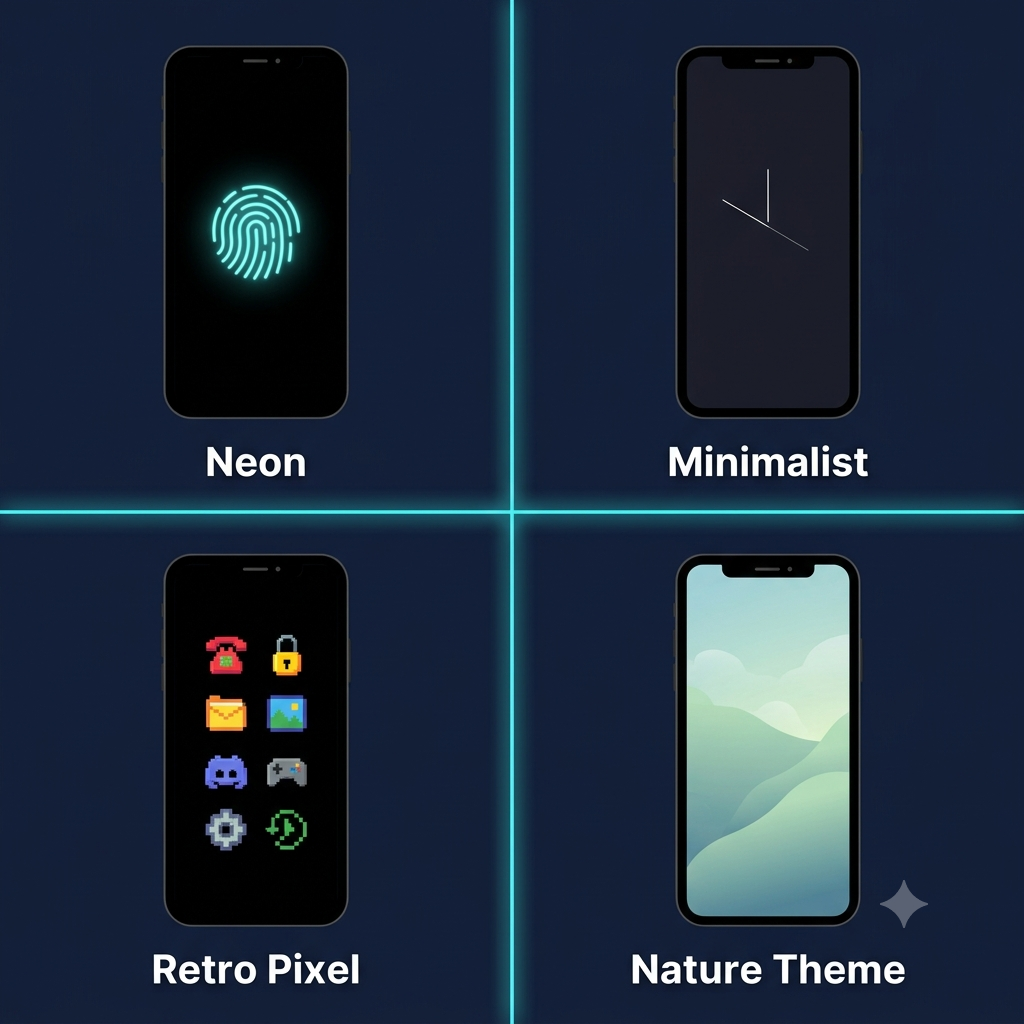
A few combinations I’ve seen work particularly well if you want something that doesn’t look like everyone else’s phone:
- A muted, slow-motion nature scene paired with a soft fingerprint glow
- A minimalist black background with just a thin animated clock line
- A retro pixel-art unlock animation if you want something playful instead of sleek
- Layering Always-On Display with a custom font instead of the stock one
Mix and match instead of copying one theme wholesale — the phones that get comments from friends are usually the ones with a slightly odd, personal combination, not a perfect out-of-the-box template.
Does customizing my lock screen slow down my phone?
Not usually, as long as you stick to one app and check your battery stats after a few days. Heavy live wallpapers are the more common culprit than the lock animation itself.
Is it safe to use third-party lock screen apps?
Yes, if you download them from the Play Store and only grant the permissions the core feature actually needs. Avoid sideloaded APKs from random links.
Can I combine fingerprint unlock with a custom theme?
Yes — most of the apps mentioned above let you keep your existing fingerprint or face unlock method while changing the visual animation and wallpaper around it.
Will this drain my battery faster?
A well-optimized always-on display or lock app has a minimal impact, especially on AMOLED screens. Live, high-motion wallpapers are the bigger battery factor to watch.
Common Mistakes People Make With This
- Downloading from outside the Play Store to “get more themes.” Not worth the risk.
- Stacking multiple lock apps at once, which causes the permission conflicts I mentioned earlier.
- Ignoring battery settings for apps with animated wallpapers — check your battery usage after a week and adjust if one app is draining more than expected.
- Skipping the backup PIN. Always keep a plain PIN or pattern active underneath your stylish lock, in case the app crashes or needs an update.
- Choosing style over security entirely — a gorgeous lock screen means nothing if you’ve set your pattern to a simple “Z” shape anyone could guess by watching you unlock it twice.
If you want a deeper walkthrough on locking down your phone properly before you get into the style side of things, check out my earlier guide on setting a stronger pattern lock for the security basics first.
Click visit here, to download the App:
Where I Landed After All This
My phone still isn’t the flashiest one at the table, but it finally feels like it’s actually mine. The neon fingerprint ripple gets a comment every couple of weeks, and more importantly, I’ve stopped unlocking my phone 40 times a day just to check the time — the always-on clock handles that now.
If you’re going to spend that much time staring at one screen every day, it might as well feel like something you picked, not something that came pre-loaded on the box.
For more information, visit: APKSITE1