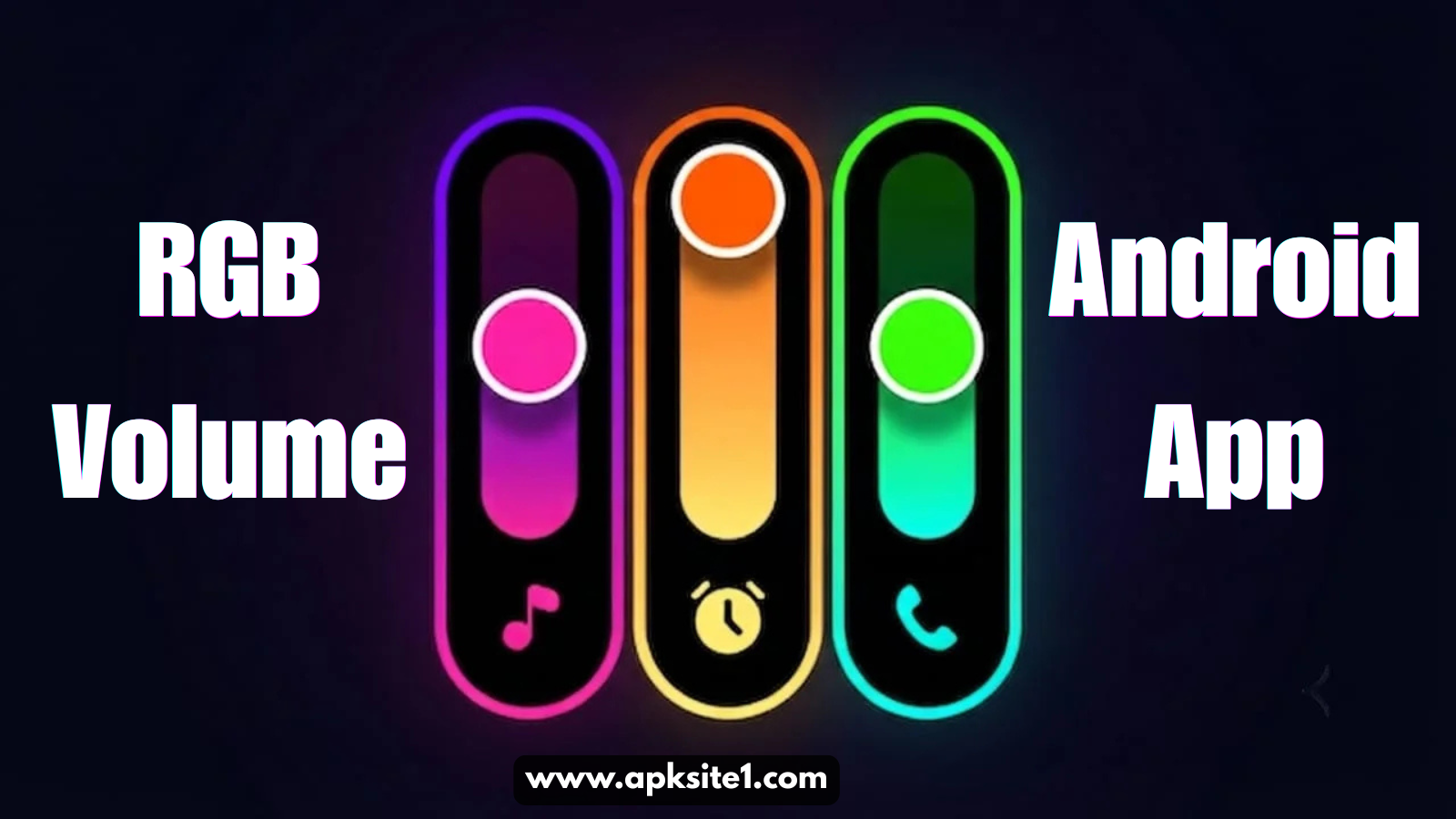
I was sitting in a coffee shop last month, phone face-up on the table, when my friend Zain reached over, hit the volume button, and just… stared. “Wait, what is that,” he said, pointing at the little glowing bar that popped up on my screen instead of the boring gray stripe every Android phone ships with.
That glowing bar is why I’m writing this. I’d installed a Neon RGB volume customization app a few weeks earlier mostly out of boredom, half expecting it to be another gimmicky app that eats battery and does nothing useful. It wasn’t. It’s honestly one of the few “cosmetic” apps on my phone that I’ve kept installed for longer than a week.
So here’s the real rundown — what these apps actually do, which one I ended up sticking with, the mistakes I made setting mine up, and how you can get yours looking good without messing up your phone’s performance in the process.
What Even Is a Neon RGB Volume Customization App?
Stock Android gives you one volume panel. It’s flat, it’s gray or white depending on your theme, and it’s been basically the same design since forever. A Neon RGB volume customization app swaps that default panel for something with actual personality — glowing sliders, color gradients that shift as you drag them, and animations that feel more like something out of a gaming setup than a phone menu.
Think of it the same way people mod their mechanical keyboards with RGB lighting. It’s not going to make your phone run faster. It’s just going to make the thing you touch fifty times a day look a lot cooler.
Why I Actually Bothered Installing One
I’ll be honest, I didn’t go looking for this. I saw a screen recording on Reddit of someone’s volume panel pulsing red-to-purple every time they hit the side buttons, and I got curious enough to try replicating it myself.
Turns out there’s a small but genuinely dedicated community of Android customization apps built around this exact idea. A few reasons I kept mine:
- It’s a small detail, but small details are what make a phone feel like yours instead of a device you bought off a shelf.
- It pairs really well with dark wallpapers and RGB icon packs, so my whole home screen finally feels consistent.
- Unlike a lot of “customization” apps I’ve tried, it didn’t ask for a dozen weird permissions.
Setting It Up (And What I Got Wrong the First Time)
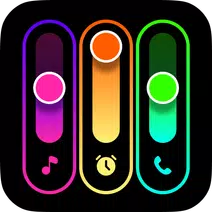
Here’s the part most guides skip — the actual setup, including the annoying bit I ran into.
Step 1: Download from the Play Store only. I made the mistake once of grabbing a “modded” APK for a different customization app from a random forum. It worked for about a day before it started throwing ads over my lock screen. Not worth it. Stick to the Google Play Store version of any Neon RGB volume customization app you try.
Step 2: Grant the display overlay permission. This is the one permission that trips people up. The app needs “Display over other apps” access to actually draw the custom volume panel on your screen. Android will prompt you for this — just don’t panic and deny it thinking it’s sketchy. It’s a normal requirement for any app that redraws system UI elements like this.
Step 3: Pick a base color, don’t go straight to “everything at once.” My first setup was a mess — I turned on every color, every animation, and every glow effect at once because I was excited. It looked less like a phone and more like a broken traffic light. Pull it back. Pick one or two accent colors and let the animation do the rest of the work.
Step 4: Test it against your actual wallpaper, not the app’s preview. The in-app preview almost never matches how it looks on your real lock screen. I’ve had themes that looked incredible in the app’s demo and completely clashed with my wallpaper once applied. Apply it, back out, hit your volume button for real, and adjust from there.
Step 5: Save your setup once you’re happy. Some of these apps reset your custom style after an update. Screenshot your settings once you’ve got a combo you like, just in case you need to rebuild it.
What I Wish Someone Had Told Me
A few things I only figured out through trial and error:
- Dark wallpapers make neon effects pop way more than light ones. On a white wallpaper, the glow just looks washed out.
- Matching your volume panel color to your icon pack ties everything together. I use a cyan-and-navy icon pack, so I set my panel to the same tone, and now it genuinely looks like one cohesive design instead of three different apps fighting for attention.
- Less really is more here. The apps I’ve seen look the worst are the ones running five animated effects at once. One clean glow beats a chaotic rainbow every time.
Common Mistakes People Make
I’ve messed up most of these myself, so consider this the shortcut version:
- Downloading from outside the Play Store. It’s tempting when you see a “premium unlocked” version floating around, but it’s rarely worth the risk to your data.
- Ignoring the permissions screen. Skim it, sure, but don’t just tap allow on everything without a glance — a legitimate volume customization app only needs display overlay access, not your contacts or location.
- Never updating the app. Customization apps like this get frequent small updates, mostly to stay compatible with the latest Android version. Skipping updates is usually why people say “it stopped working after my phone update.”
- Overdoing the design. Covered above, but worth repeating — restraint makes the neon effect look intentional instead of accidental.
Does It Affect Battery or Performance?
This was my biggest worry going in, since anything that draws a custom overlay on your screen sounds like it could drain your battery fast. In my own experience, running one of these for close to a month, I didn’t notice any real difference in my daily battery percentage. The overlay only activates when you actually press the volume button, so it’s not running constantly in the background.
That said, performance does depend on your phone. If you’re on an older or budget device, keep an eye on it for the first few days just to be safe.
Who Actually Gets Value Out of This
Realistically, this isn’t for everyone. But it’s a genuinely good fit if:
- You already customize your icons, wallpaper, or lock screen and want the volume panel to match.
- You film screen recordings or content and want your setup to look distinct.
- You just like tinkering with your phone’s UI in your downtime — no shame in that, it’s a cheap way to make an old phone feel new again.
Final Thoughts
I went into this expecting another forgettable customization app, and instead it’s become one of those small things that makes picking up my phone slightly more satisfying. It’s not going to change your life. It’s not meant to. But if you’re someone who likes your phone to actually look like it belongs to you, a Neon RGB volume customization app is one of the easiest, lowest-risk ways to get there — as long as you download it from the Play Store, keep the design simple, and give it a real test against your own wallpaper before deciding it’s not for you.
If you try one out, start with one accent color and build from there. That’s the lesson that took me the longest to learn.
For more information, visit: APKSITE1